How to Reduce a CSV File Size: Practical Guide
Learn practical, tested methods to shrink large CSV files without data loss. Pruning, encoding, and compression techniques, plus automation tips for reproducible results.


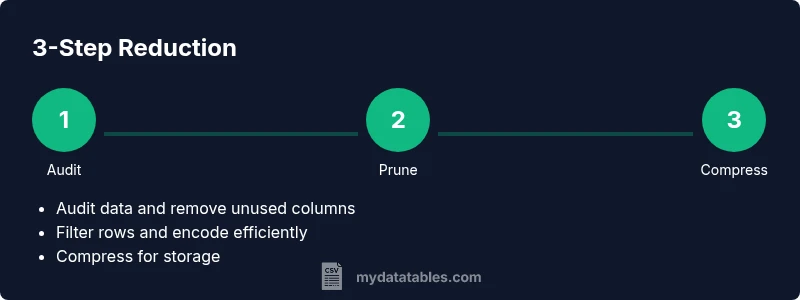
You can shrink a CSV file size by pruning columns, filtering rows, normalizing data, and choosing compact encodings. Start with a data audit to identify unnecessary fields and excess precision, then apply column removal, row filtering, and data type optimization. Finally, save intermediate versions and compare sizes to verify gains. Document changes for reproducibility.
Why reducing CSV size matters
Large CSV files are more than just inconvenient; they slow down analysis, consume more memory, complicate transfers, and increase the risk of timeouts in ETL pipelines. Reducing size improves load times, speeds up queries, and lowers storage costs—benefits that compound when you work with monthly exports or data warehouses. According to MyDataTables, many teams underestimate the gains from simple data-cleaning steps and export as-is even when a leaner version would suffice. A lean CSV is easier to inspect, test, and share with teammates, vendors, or clients. The first step is a lightweight data audit: identify which columns are essential for downstream analytics and which fields are only used for internal tracking or historical reference. Then look at row-level data: are there test records, duplicates, or outdated statuses that should be excluded from the standard export? By combining column pruning with selective row filtering and adopting compact representations for numeric and categorical data, you can achieve meaningful reductions without sacrificing the information you actually rely on.
Quick wins you can apply immediately
If you need fast wins, start with a small set of high-impact changes. Remove columns that are not used by downstream processes; collapse wide text fields into shorter codes; filter out test rows, duplicates, and deprecated statuses; convert floating-point numbers to fixed-point integers when appropriate; switch to a consistent, compact date or ID format; and consider exporting only a subset of the most recent records if historical data is not required for every analysis. For every change, save a new version and compare file sizes to confirm the improvement. This approach delivers immediate gains and helps you establish a baseline for more advanced optimizations later in your workflow.
Pruning columns and rows: a disciplined approach
Start by listing all columns and marking those essential for downstream analytics. Remove any column used only for debugging or auditing if a permanent export isn't required. Next, evaluate row-level data: identify nonessential time ranges, test runs, or records that can be excluded for regular exports. Apply a chain of filters, testing after each change. After you prune, re-check schema integrity and ensure downstream scripts can still map column positions correctly. This discipline reduces complexity and yields more predictable performance in data pipelines.
Data types, normalization, and encoding
CSV stores data in text; the same data represented as text can blow up size because of repetition. Normalize where possible: replace repeated textual categories with codes or lookups; store dates in a compact format (ISO 8601-style) and represent booleans as 0/1. For numeric fields, prefer integers and fixed decimals over floating-point text when the business context allows. If you must keep decimals, consider rounding to a sensible precision before export. Consistency in encoding matters too: ensure UTF-8 without BOM is used, and avoid UTF-16 unless required for compatibility.
Handling text fields and duplicates
Text-heavy columns (descriptions, comments) are the biggest drivers of CSV size. If the text is repetitive, consider encoding or mapping copies of common phrases to short codes, or moving long descriptions into a separate document with a reference in the CSV. Remove duplicates where safe; this includes exact duplicates and near-duplicates if their presence is unnecessary for downstream analytics. When duplicates must be preserved, provide an index or key to recover original records if needed.
Compression, archiving, and storage strategies
Even after reduction, raw CSV files can be bulky. Compress the final export using gzip, bzip2, or zip to save space during storage and transfer. For reproducibility, consider storing both the reduced CSV and the compression configuration (algorithm, level) in your data pipeline documentation. Note that some systems cannot read compressed CSVs directly; in such cases, provide a decompaction step or use a streaming approach to decompress on-the-fly.
Automation and reproducible workflows
Automate the reduction steps with a lightweight script to ensure consistency across batches. A typical workflow might profile the source, apply pruning rules, run data-type normalization, export a reduced CSV, and then compress it. Use version control for scripts and maintain a changelog of what was pruned or transformed. Parameterize the script to handle different schemas and dataset sizes, so you can reuse it across projects.
Validation, quality checks, and keeping data quality
Before and after each reduction, run checks to ensure essential columns exist, the number of records matches expectations, and data formats remain valid. Simple checks include column presence, null counts, and basic sanity tests on ranges. If you use a database, load a sample to verify that queries that rely on the reduced schema return consistent results. Document any deviations and adjust pruning rules accordingly.
Case study: practical example without numbers
Consider a dataset with customer orders containing dozens of fields. By auditing the schema, pruning nonessential fields (internal IDs, internal notes), filtering out archived orders, standardizing encodings, and replacing repetitive text with codes, the team achieved a leaner export suitable for analytics dashboards. The key is to maintain a clear mapping from codes to full values, so downstream analysts can interpret results accurately. Automating this flow ensures future exports retain the same lean structure while preserving data integrity.
Tools & Materials
- CSV editor or spreadsheet program(Open large CSV files for quick inspection or manual pruning)
- Command-line tools (grep/awk/cut)(Useful for quick filters and column extraction)
- Python with pandas or csvkit(Automates profiling, type normalization, and export)
- Data profiling tool(Helps identify data types, missing values, and duplicates)
- Compression tool (gzip, zip, bzip2)(Compress final outputs for storage and transfer)
- Version control system(Track changes to scripts and reduction rules)
- Test dataset and backups(Always work on copies; preserve the original)
Steps
Estimated time: 60-90 minutes
- 1
Audit the dataset
Create a copy of the original CSV. Run a quick profiling pass to list all columns, data types, and sample values. Identify fields that are clearly nonessential for downstream analytics.
Tip: Document the snapshot before making any changes to preserve a rollback point. - 2
Identify essential columns
Mark which columns are necessary for downstream processes. Flag any auditing or internal-use columns that can be dropped from the export.
Tip: Keep a changelog of decisions to support traceability. - 3
Prune columns
Remove nonessential columns from the export. Update downstream mappings to reflect new column positions if needed.
Tip: Test downstream scripts with the pruned schema to catch breakages early. - 4
Filter rows
Apply filters to retain only relevant records (e.g., recent time periods, active statuses). Validate that essential row counts remain sufficient for analysis.
Tip: Keep a reference copy of filtered IDs for recovery if necessary. - 5
Normalize data types
Convert numbers to integers where possible, round decimals, and replace repeating text with codes or lookups.
Tip: Be conservative with rounding to avoid misleading results. - 6
Prepare encoding
Choose a consistent encoding (UTF-8) and a compact date format. Consider mapping repeated categories to codes to reduce repetition.
Tip: Test a small export to verify encoding integrity across systems. - 7
Export reduced CSV
Export the reduced dataset to a new CSV file. Validate that the schema, column order, and data formats align with downstream needs.
Tip: Keep a versioned filename for easy rollback. - 8
Compress and document
Compress the final CSV with gzip/zip and record the algorithm and options used. Store a short note detailing the changes and the rationale.
Tip: Include a link to the original data and the reduced version for auditability.
People Also Ask
What factors influence CSV file size the most?
Column count, row count, and the text content of fields are the primary drivers. Repeated text, long descriptions, and high-precision numeric fields increase size more than necessary. Reducing these elements yields the biggest gains.
The main culprits are how many columns you have, how many rows, and how much text is in each field.
Should I always compress the final CSV after reduction?
Compression almost always reduces storage needs. Check whether downstream systems can read compressed CSVs directly; if not, provide a decompression step in the pipeline.
Yes, compression helps, but ensure downstream systems can handle compressed inputs or decompress on the fly.
Which tools work best for reducing CSV size?
Popular choices include Python with pandas for automated reductions, csvkit for quick CLI operations, and shell tools like awk for simple filtering. Choose a tool you can maintain in your workflow.
Python with pandas or csvkit are great for automation; shell tools help with quick tweaks.
Can reducing size affect data integrity?
If pruning is performed with a clear mapping to required fields and proper backups, data integrity is preserved. Always validate the reduced dataset against expected schemas and counts.
As long as you prune thoughtfully and validate, integrity remains intact.
How do I verify that the size reduction is meaningful?
Compare file sizes before and after reductions, and test downstream analytics to ensure results are consistent. Use a reproducible process to confirm gains across environments.
Measure size changes and re-run analytics to confirm consistency.
Is CSV always the best format for large datasets?
CSV is simple and portable, but for very large datasets a database or columnar formats with compression may be more efficient. Use CSV for interchange, then move to a database or optimized format for analysis.
CSV is great for interchange, but consider databases for very large datasets.
Watch Video
Main Points
- Audit data before pruning to minimize loss.
- Prune columns and filter rows in a deliberate sequence.
- Normalize data types and encode repeated values.
- Export to a stable, compact format and compress for storage.
- Automate and document for reproducibility.