Why is My CSV Not Importing Correctly: A Practical Troubleshooting Guide
Urgent troubleshooting guide to fix CSV import issues: encoding, delimiters, headers, and data formatting with practical steps, tests, and best practices for reliable data imports.


Quick answer: The most common reason why your CSV isn’t importing correctly is delimiter or encoding mismatch. Start by confirming UTF-8 encoding and the correct delimiter, and verify the header row matches what the import tool expects. According to MyDataTables, fixing encoding and delimiter resolves the vast majority of CSV import errors.
Why the CSV import fails: core ideas
For the question why is my csv not importing correctly, the root causes fall into a few categories: encoding and delimiter, header and field alignment, data formatting, and file integrity. Start by scanning the file in a plain text editor to catch non-printable characters, unusual line endings, or inconsistent quote usage. MyDataTables Analysis, 2026 notes that encoding and delimiter mismatches are among the most frequent causes of import failures. If your tool expects UTF-8 and you saved as ANSI or with a BOM, many programs choke on the data. Similarly, when the delimiter in the file doesn't match the importer, rows shift columns and compromise all following rows. Before you conclude that your destination system is broken, confirm that the file actually matches the expected schema: the same number of columns per row, and the same header names as the target system. A small mismatch here cascades into large import errors.
Check encoding and delimiter in practice
Start by confirming the CSV encoding and delimiter used by your source file. Open the file in a plain text editor and verify it is saved as UTF-8 (without BOM, if your importer requires it). Then check the delimiter: is it a comma, semicolon, or tab? Create a tiny two-row sample and attempt import using the same settings. If the sample imports cleanly but the full file does not, the problem is almost always with the file content or structure rather than the import tool itself. According to MyDataTables Analysis, encoding and delimiter mismatches are frequent culprits, so re-saving with the correct encoding and delimiter often resolves most errors.
Validate headers and missing values
The header row defines how the importer maps columns, so headers must match exactly: name, type, and order matter. Watch for extra spaces, hidden characters, or inconsistent casing. If the header count differs from the data rows, or if a required column is missing, many import processes fail. Add a clean, minimal header set for testing and gradually restore the full set once the import succeeds. For better reliability, keep header names predictable and avoid special characters that tooling may misinterpret.
Quoting rules and embedded delimiters
Fields containing the delimiter character must be enclosed in quotes, and internal quotes should be escaped or doubled according to the importer rules. Inconsistent quoting is a frequent source of misaligned columns and corrupted data. When you see lines shifting columns, inspect a few rows to check whether quotes open and close correctly and whether the same quoting standard is applied across the file. A quick rule: if a field contains a comma, always quote it; if it contains newline characters, ensure the field is properly quoted.
Handling newlines and multi-line fields
Newlines inside a CSV field can break parsing if the importer expects one record per line. Ensure your file uses consistent line endings (CRLF or LF) and that multi-line fields are correctly enclosed in quotes. When testing, create a small sample that includes a multi-line value and verify the importer accepts it. Misplaced newline characters often manifest as mysterious row shifts or truncated data in the imported table.
Data types and date formats
Importers often coerce strings into numbers, dates, or booleans, and misformatted values cause errors or data loss. Normalize dates to a standard format (YYYY-MM-DD) and ensure numeric fields contain only digits and decimal points. If your tool requires explicit type hints, add them in a separate schema or mapping file. MyDataTables Analysis notes that encoding and delimiter mismatches are frequent culprits, but data type mismatches also block imports in edge cases.
Large CSV files: performance and stability
Very large files can overwhelm memory and slow down validation steps. Consider splitting the file into smaller chunks, streaming the data, or performing pre-validation on headers and a few data rows before a full import. If your importer supports batch processing, run in small batches and monitor errors per batch. Remember to back up your data before attempting any bulk import operation.
Tool-specific tips: Excel, Google Sheets, and Python
Different tools interpret CSV a little differently. In Excel, save as CSV UTF-8 to avoid encoding issues; in Google Sheets, export as CSV UTF-8 to preserve newlines; in Python, use pandas.read_csv with explicit encoding and delimiter options. When in doubt, test the same file with multiple tools to identify inconsistent behavior. MyDataTables recommends using a controlled preprocessing step before import.
Quick validation checklist before importing
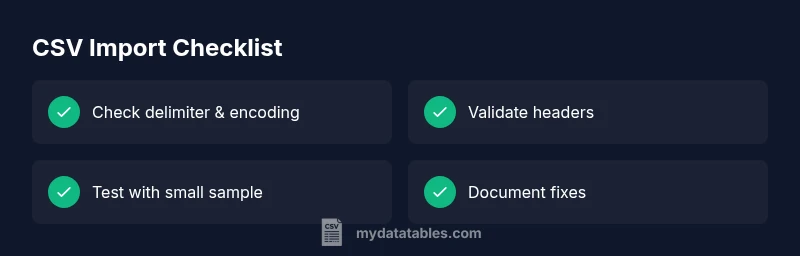
Before you import, run this checklist to reduce errors:
- Confirm UTF-8 encoding and the correct delimiter
- Verify header names and total columns match the target schema
- Check for stray or non-printable characters
- Ensure proper quoting for fields with commas or newlines
- Validate a small sample import before running the full file
- Logs: Review error messages; capture row numbers for debugging
- Rollback: Have a backup strategy; know how to revert if something goes wrong
Steps
Estimated time: 60-120 minutes
- 1
Verify encoding and delimiter
Open the CSV in a text editor and confirm UTF-8 encoding without BOM if required. Check that the delimiter matches the importer’s expected character (comma, semicolon, or tab). Save a new copy if necessary and re-test with a tiny sample.
Tip: Always test with a 2-3 row sample to avoid large re-imports. - 2
Inspect headers against the schema
Compare the first row to the importer’s required headers. Remove hidden characters and ensure no duplicate column names. Adjust order if needed and re-run a small import.
Tip: Use a diff tool to catch whitespace or case differences. - 3
Check quoting and embedded delimiters
Review rows with embedded commas or quotes. Ensure fields with delimiters are consistently quoted and that inner quotes are escaped according to the importer rules.
Tip: If in doubt, standardize on double quotes and escape inner quotes by doubling them. - 4
Validate rows with multi-line fields
Test a few lines containing newline characters to verify proper handling. Ensure multi-line fields are enclosed in quotes and that line endings are consistent.
Tip: If your tool struggles with multi-line fields, try preprocessing to concatenate them into single-line fields. - 5
Normalize data types
Ensure dates, numbers, and booleans conform to expected formats. Convert dates to ISO-like formats and strip non-numeric characters from numeric fields.
Tip: Keep a mapping guide for columns that require explicit types. - 6
Test with a small subset
Import a small subset to confirm mappings are correct before processing the full file. Validate the resulting dataset against the source.
Tip: Review error messages and capture the line numbers for debugging. - 7
Escalate if needed and plan prevention
If issues persist, escalate to a data engineering or IT specialist. Implement a preprocessing and validation pipeline to prevent future failures.
Tip: Document fixes and create a repeatable import recipe.
Diagnosis: CSV import fails or produces incorrect data during import
Possible Causes
- highIncorrect delimiter or wrong encoding
- mediumHeader row mismatch or missing headers
- lowData type mismatches or improper quoting
Fixes
- easyValidate encoding is UTF-8 and the correct delimiter; re-save if needed
- easyCompare header names to the importer’s expected schema and fix mismatches
- easyCorrect quotes, escape characters, and remove stray characters; test with a small sample
People Also Ask
What is the most common CSV import error?
The most common CSV import error is a delimiter or encoding mismatch. Start by confirming UTF-8 encoding and the correct delimiter, then verify that the header names align with the target schema.
Usually, you’ll fix this by ensuring UTF-8 encoding and the right delimiter, and checking headers.
How can I verify CSV encoding quickly?
Open the file in a plain text editor and confirm it uses UTF-8 encoding. If not, re-save the file as UTF-8 and re-import with the same delimiter.
Open it in a text editor and re-save as UTF-8, then try importing again.
Why do headers matter for CSV import?
Headers map to columns in the destination. Mismatched or missing headers can cause data to shift or fail to import.
Headers define your columns; mismatches can derail the whole import.
Can Excel cause encoding problems?
Yes. Excel may save files in a non-UTF-8 encoding. Always export or save as UTF-8 when preparing CSVs for import.
Excel can shift encoding; save as UTF-8 to avoid issues.
What should I do if import still fails after checks?
Import a small subset, review error messages, and adjust one variable at a time. If issues persist, escalate to a data engineer.
Test with a small sample, read the errors, and fix step by step.
When is professional help needed?
When data integrity is critical and repeated fixes fail, or the dataset is very large and complex, seek expert assistance.
If data is critical or huge, bring in a specialist.
Watch Video
Main Points
- Back up before any changes
- Verify encoding and delimiter first
- Match headers exactly to the schema
- Test with a small sample before full import
- Document fixes for future imports