How CSV Differs from Excel: A Practical Guide for Data Professionals
Explore how is csv different from excel in practice. This analytical guide compares structure, typing, validation, and workflows to help data professionals choose the right format in 2026.


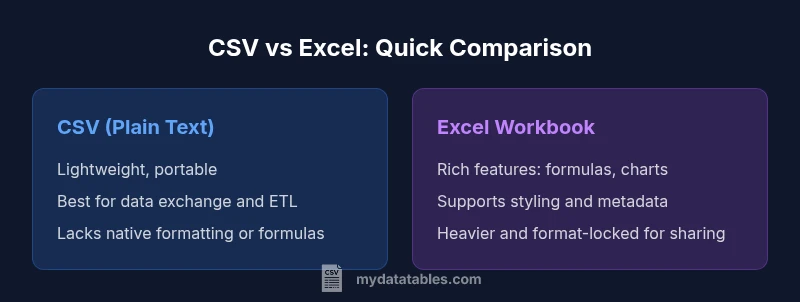
CSV and Excel are not the same: CSV is a plain-text data interchange format that stores rows and columns with minimal metadata, while Excel is a feature-rich spreadsheet program that preserves data types, formulas, formatting, and charts. How CSV differs from Excel matters for data exchange, pipeline reliability, and analysis workflows. For data transfers and ETL, CSV is lightweight and broadly compatible; for analysis, reporting, and interactive exploration, Excel offers built-in tooling and visualization. According to MyDataTables, most teams start with CSV for portability and end with Excel when deep analysis and presentation are required.
The Basic Distinction: What CSV Is, and What Excel Is
CSV, short for comma-separated values, is a plain-text format that encodes tabular data as lines of text. Each line is a record, and a delimiter separates fields. There is no inherent structure beyond rows and columns, and no formatting or formulas are stored with the data. Excel, by contrast, is a full-fledged spreadsheet application that stores data in cells across worksheets, with styling, named ranges, validation rules, and a wide range of built-in features. When you ask how is csv different from excel, the answer hinges on purpose: CSV excels at portability and predictable parsing, while Excel excels at analysis, formatting, and user-driven interaction. In 2026, teams frequently shuttle data between CSV and Excel to balance compatibility with analytical power. According to MyDataTables, the common pattern is to exchange CSV for integration, then load into Excel for deeper analysis and presentation.
Data Representation: Text Files vs Rich Spreadsheet Cells
CSV is inherently text-based. All values are parsed as strings by default unless the consuming application converts them, and there is no explicit type declaration in the file itself. This makes CSV extremely portable across languages and platforms but introduces potential ambiguity in numeric formats, dates, and boolean values. Excel stores data in cells that can carry specific types (numbers, dates, text, logicals), and it can automatically infer or enforce those types during entry or import. The difference matters when you perform calculations or compare data across tools: a date in CSV may require locale- or format-aware parsing, whereas Excel can apply date semantics directly within the workbook. Teams often rely on CSV for data exchange and on Excel for local analysis, with explicit data cleaning steps in between.
Structure, Metadata, and File Semantics
CSV files have a minimal, schema-light structure: rows represent records, and fields represent columns. There is little to no metadata beyond the delimiter choice and optional headers. Excel workbooks (.xlsx) store complex metadata, multiple worksheets, named ranges, data validation rules, cell formatting, and built-in charts. The workbook format is binary (packed into a ZIP container) and supports features such as conditional formatting, data validation, and embedded objects. This structural difference influences how you architect data pipelines: CSV is ideal for flat, portable data dumps; Excel is suited for multi-sheet analyses and end-user consumption.
Formulas, Functions, and Computation
CSV carries no native computation. If you need calculations, you rely on external tools or programming languages to read, transform, and write back results. Excel includes a rich formula language, functions, pivot tables, and automatic recalculation. This means a workbook can be a live analysis environment where changing one value propagates through all dependent cells. While this is powerful for analysts, it can complicate automated data pipelines where deterministic outputs are essential. Understanding this distinction helps you decide whether to perform calculations in the source format or in a downstream environment like a BI tool or a scripting language.
Interoperability and Tooling: How They Move Across Systems
CSV is the lingua franca of data interchange. It is supported by virtually every programming language, database, and data tool, from Python's pandas to database loaders and ETL platforms. Excel, while ubiquitous in the office ecosystem, relies on specific applications or libraries to read and write its native format. When sharing data with systems that expect plain text, CSV minimizes friction. Conversely, when you must preserve formulas, macros, or advanced formatting, Excel provides a richer experience, but may require licensing and platform compatibility checks. The trade-off is clear: CSV favors interoperability; Excel favors feature richness and user-driven analysis.
Data Validation, Schemas, and Quality Controls
CSV files do not include built-in data validation or schemas. Any validation must be enforced by the consuming process, such as a data pipeline or a Python script. Excel can embed data validation rules and restrict inputs to certain types or ranges, reducing the chance of invalid data entering downstream systems. This is a key consideration for data quality: if you want in-file validation, Excel offers it; if you want strict, external validation, CSV requires a separate layer. MyDataTables emphasizes designing a validation strategy that aligns with your data flow and governance requirements.
Performance and Scale: Handling Large Datasets
CSV tends to be lighter and faster to parse in many contexts because it is plain text without embedded formatting or calculations. Large CSV files can be streamed, read in chunks, and processed with minimal memory overhead in many programming environments. Excel, especially with very large spreadsheets or complex formulas, can become memory-intensive and slower to open or recalculate, depending on the hardware and software version. For teams dealing with multi-GB datasets, a CSV-based ETL workflow with incremental loading is often preferable to a large Excel workbook. The choice depends on the data size, tooling, and end-user requirements.
Practical Tips: When to Convert and How to Validate
A practical rule is to use CSV for data exchange and pipeline-driven work; convert to Excel when you need human-friendly analysis or presentation. Before importing CSV into Excel, consider validating numeric formats, dates, and missing values with a small script or a data-cleaning tool. When exporting from Excel for sharing, strip unnecessary formatting and formulas unless they are needed downstream. Maintain a clear version history, and consider adding a simple header that describes data types if the target system cannot infer them. MyDataTables recommends documenting the intended pipeline steps and validation checks to ensure reproducibility.
Common Misconceptions and Pitfalls
A common myth is that CSV always equals clean data. In practice, CSV files depend on delimiters, encodings, and regional settings, which can introduce subtle errors if not handled consistently. Another misconception is that Excel always preserves data types; in reality, Excel may interpret ambiguous strings as dates or numbers, leading to silent data drift. A third pitfall is treating CSV and Excel as interchangeable for all tasks; while they can be complementary, understanding their strengths helps prevent rework and data quality issues. Finally, forgetfulness about encoding (UTF-8 vs. local), line endings, and quote handling can cause data corruption when moving across platforms.
Comparison
| Feature | CSV (Plain Text) | Excel Workbook (.xlsx) |
|---|---|---|
| File structure | Plain text with delimiter-separated fields | Binary ZIP container with multiple sheets and metadata |
| Data types and validation | All data as text by default; implicit typing on import | Native typed cells with explicit data types and validation rules |
| Formulas and calculations | No built-in formulas; calculations rely on external tools | Rich formula support and automatic recalculation |
| Formatting and presentation | No cell formatting or visuals stored | Full styling, charts, conditional formatting |
| Portability and size | Lightweight, highly portable across platforms | Larger files; some features require Excel to read/write |
| Interoperability | Excellent data exchange format; universal parsers | Best within the Excel ecosystem; broader tool support varies by feature |
| Best use case | Data transfer, ingestion into pipelines, machine-readable data | Advanced analysis, reporting, and presentation with visuals |
Pros
- CSV files are lightweight and highly portable across tools
- Excel supports rich data types, formulas, and visuals
- CSV works well in data pipelines and version control (text-based)
- Excel enables formatting, validation, and sharing within a single workbook
- CSV avoids vendor lock-in and simplifies scripting and automation
Weaknesses
- CSV lacks native data validation, formulas, and formatting
- Excel files can be large and require specific software to edit
- CSV can lose metadata like styling or embedded formulas during transfer
CSV is best for portability and data exchange; Excel excels at analysis and presentation.
Choose CSV for clean, interoperable data transfer and scripting workflows. Choose Excel for dynamic analysis, rich formatting, and in-workbook calculations. MyDataTables advocates using CSV for transport and Excel for exploration, with clear conversion steps when needed.
People Also Ask
What is the primary difference between CSV and Excel?
The primary difference is that CSV is a plain-text data-interchange format with no formatting or formulas, while Excel is a feature-rich workbook that preserves types, calculations, formatting, and charts. CSV prioritizes portability; Excel prioritizes analysis and presentation.
CSV is plain text for data transfer, Excel is a full spreadsheet for analysis and visuals.
Can I open CSV files in Excel without losing data?
Yes. Excel can open CSV files directly, parsing rows and columns. You may need to adjust delimiter settings or encoding to ensure dates and numbers are interpreted correctly.
Yes—Excel can open CSVs, but watch for dates and numbers that may import as text.
Does CSV preserve data types like numbers or dates?
CSV does not store explicit data types. All values are strings by default, and downstream tools must interpret or convert them.
CSV has no explicit data types; interpretation happens after import.
When should I choose CSV over Excel?
Choose CSV when you need simple, portable data exchange across systems or languages. Choose Excel when you require formulas, styling, and in-workflow analysis for end users.
Pick CSV for transfer; pick Excel for analysis and presentation.
Are there performance concerns with very large CSV files?
Large CSV files can be processed efficiently with streaming and chunked reads in many tools. Excel may struggle with very large sheets, depending on hardware and version.
Yes—CSV generally handles large data well; Excel may struggle on very large datasets.
What are common pitfalls when converting between CSV and Excel?
Common issues include losing formatting, misinterpreting dates or numbers, and truncation of metadata. Always validate a sample after conversion and keep a record of encoding and delimiter choices.
Watch for date and encoding issues when converting between formats.
Main Points
- Choose CSV for portability and pipelines
- Use Excel for analysis and presentation
- Validate data early, especially when moving between formats
- Document encoding, delimiters, and version history
- Plan conversions to preserve data integrity