CSV vs Excel: A Practical Side-by-Side Comparison
A thorough, data-driven comparison of CSV and Excel formats, examining use cases, fidelity, performance, tooling, and best practices for analysts, developers, and business users.


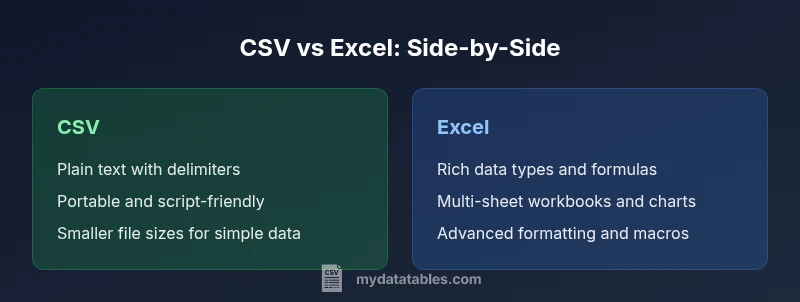
CSV vs Excel: When you need portable, lightweight data exchange, CSV wins. For data analysis, formatting, and automation, Excel remains the more capable workspace. This quick comparison highlights where each format shines and where to avoid traps, helping you choose the right tool for your data task. Consider file size, tooling, and collaboration needs.
The Core Differences: CSV vs Excel Fundamentals
CSV, or comma-separated values, is a plain-text format designed for simple tabular data. It stores data in rows with a delimiter (commonly a comma) and uses UTF-8 or other encodings. Excel formats (.xls, .xlsx) are binary or zipped packages that can contain multiple worksheets, formatting, formulas, charts, and metadata. The difference is not only in file type but in how data is represented, processed, and consumed by tools. CSV emphasizes portability and simplicity, whereas Excel emphasizes interactivity and analytics. When you compare csv vs xls in real workflows, you must consider how data types are stored, how structure is preserved during round-trips, and what tooling you’ll rely on to read or write each format. In practice, many pipelines start by exporting CSV from a data source for broad compatibility, then import the data into Excel for modeling or presentation. This section lays out the essentials: delimiting, quoting rules, and encoding; row boundaries and null values; and the fact that CSV has no intrinsic metadata beyond headers. It also notes practical limits: CSV cannot natively express multi-sheet workbooks, cell annotations, or formulas without external conventions, while Excel integrates these capabilities by design. Understanding these core differences helps data professionals choose the right target format for a task and anticipate conversion challenges across systems.
When CSV Shines: Strengths in Data Exchange
CSV shines as a data-exchange format precisely because it strips away presentation and structural layering. It is the most portable way to move tabular data between systems, languages, and platforms. For teams that rely on scripting, ETL pipelines, or batch processing, CSV reduces friction and dependence on proprietary software. This section explains why CSV is often the default for exporting data from databases and APIs, how to handle delimiter choices, and how encoding decisions affect cross-team collaboration. You’ll also see practical guidance on when to prefer CSV for automated jobs and when to avoid it due to edge cases in data fidelity or metadata.
Excel: Strengths in Analysis and Presentation
Excel is a powerful workspace for data analysis, budgeting, planning, and reporting. It supports multiple worksheets, rich formatting, built-in formulas, pivot tables, charts, and macro automation. For analysts who need to model scenarios, create dashboards, or share interactive content with business stakeholders, Excel provides a cohesive environment where data, calculations, and visuals live together. This section details core capabilities, from formula syntax and named ranges to conditional formatting and data validation, and explains how these features create value beyond simple data storage. It also covers common collaboration patterns: shared workbooks, protected sheets, and version control considerations when multiple people edit the same file.
Data Types, Fidelity, and Conversion Challenges
One of the central tensions in csv vs xls is how data types are represented and preserved. CSV treats every value as text unless a consumer parser applies its own typing rules, which means dates, numbers with leading zeros, or currency formats can be misread during import. Excel, by contrast, stores rich data types natively, but that comes with its own fidelity risks during conversion to CSV (for example, dates rendered as strings or loss of complex formatting). This section provides concrete guidelines for encoding choices (UTF-8 vs UTF-16), how to quote fields with delimiters, and strategies for preserving dates, times, and special characters during round-trips. You’ll also learn practical tips for validating data after conversion and for documenting metadata that would otherwise be implicit in Excel.
Practical Workflows: Real-World Use Cases
In everyday data work, teams juggle both formats. A typical pattern is to extract data to CSV for ingestion by a data warehouse or data lake, then load a refined dataset into Excel for ad hoc analysis or a slide-ready report. Other scenarios include: CSV as a staging format for API feeds, Excel as the final reporting layer, or Excel files exported back to CSV for automated distribution. This section walks through actionable workflows, including how to script conversion, validate integrity, and maintain a clear lineage of data from source to destination. You’ll see practical examples of conversion tools, common pitfalls (such as losing leading zeros or date formats), and how to design processes that minimize manual rework.
Performance, Scalability, and File Handling
Performance and scalability considerations differ between CSV and Excel. CSV files are typically lighter and faster to parse in streaming pipelines, especially for very large datasets. Excel workbooks, while feature-rich, can be heavy and memory-intensive, particularly when they include many formulas, charts, or embedded objects. This section discusses strategies for handling large CSV files (chunked processing, incremental loading) and best practices when working with Excel (limiting the use of macros, avoiding excessive formatting in shared workbooks). You’ll also learn about platform-specific quirks, such as CSV parsers behaving differently across languages, and how to test performance under realistic workloads.
Interoperability, Tooling, and Automation
A modern data stack relies on a broad ecosystem of tools for CSV and Excel. Python libraries like pandas excel-reader and CSV modules, R's readr, and SQL-based ETL systems all juggle these formats, often converting between them as part of a pipeline. Excel has mature ecosystems for VBA automation and COM interop, while cloud-native tools enable live collaboration across teammates. This section outlines practical tool selections for common tasks, tips for building robust import/export steps, and how to avoid common integration pitfalls, such as inconsistent encodings or locale settings. The goal is to empower you to design reliable workflows that leverage the strengths of both formats.
Best Practices and Common Pitfalls
No format is perfect in every context. The best practice is to treat CSV and Excel as complementary rather than competing formats. Establish clear data contracts, document encoding decisions, and define boundary rules for what data is stored in CSV versus Excel. This section lists actionable guidelines: always store headers, specify delimiter and encoding in a README, validate conversion fidelity with automated tests, and use version control-friendly workflows for raw CSV files. Common pitfalls include losing metadata when exporting from Excel to CSV, corrupting numbers with locale-specific decimal marks, and failing to preserve time zones in date-time fields.
Comparison
| Feature | CSV | Excel (XLS/XLSX) |
|---|---|---|
| File structure | Plain text with delimiters | Binary/workbook with sheets, formatting, and metadata |
| Data types & fidelity | All data read as text by default; types inferred by consumer | Native support for dates, numbers, text, formulas, and metadata |
| Size & performance | Typically smaller and stream-friendly for simple data | Can be larger due to formatting and embedded features |
| Automation & tooling | Excellent for data interchange; scripting and streaming common | Strong support for macros, charts, and complex automation |
| Compatibility | High portability across platforms when using CSV | Best in environments with Excel-enabled workflows |
| Ideal use cases | Data exchange, logs, and export pipelines | Analysis, dashboards, and business planning |
Pros
- Excellent portability across systems and tools
- Smaller file sizes for plain tabular data
- Broad tool support and straightforward parsing
- No workbook-specific features to lock data
Weaknesses
- Limited support for data types, formulas, and formatting
- Loss of metadata and structure when exchanging complex datasets
- Not ideal for multi-sheet analyses or interactive dashboards
- Potential encoding and delimiter issues without careful handling
CSV is the go-to format for data interchange; Excel remains the better choice for analysis-rich workflows.
If portability and clean data transfer are priorities, choose CSV. If you need built-in analysis features, formatting, and dashboards, choose Excel. The best practice is to use CSV for transport and Excel for analysis, depending on the task.
People Also Ask
What is the main difference between CSV and XLS/XLSX?
CSV is a plain-text format focused on simple tabular data exchange. Excel workbooks store complex structures, multiple sheets, formatting, and formulas. The choice depends on whether you prioritize portability or advanced analysis features.
The main difference is that CSV is plain text for easy data transfer, while Excel offers rich formatting and formulas for analysis.
When should I export data as CSV vs Excel?
Export as CSV when you need broad compatibility, small file sizes, and easy parsing by various tools. Export as Excel when you plan to do calculations, build dashboards, or require presentation-ready formatting.
Export as CSV for portability; use Excel when you need calculations and visuals.
Can Excel export to CSV without losing data?
Exporting to CSV can lose data fidelity for dates, currency, and complex formatting. You must define encoding and delimiter choices, and verify results in the destination tool.
Yes, but you may lose formatting and some data types unless you code the export carefully.
Is there a performance impact when using CSV for large datasets?
CSV generally offers faster streaming reads and smaller memory footprints for large datasets, simplifying ETL. Excel can become slower when files are large or heavily formatted, due to additional features and calculations.
CSV tends to be faster for big data; Excel can slow down with complex workbooks.
How do I handle dates and encodings in CSV?
Standardize on a consistent date format and UTF-8 encoding when possible. Use explicit headers, quote fields with special characters, and validate after import to prevent misinterpretation.
Keep dates consistent and use UTF-8; quote tricky fields and test imports.
Are there security considerations when sharing CSV or Excel files?
CSV files are generally text-only and easy to inspect, but sensitive data should be redacted or protected as needed. Excel files can contain macros and hidden metadata; use access controls and consider removing unnecessary features before sharing.
Be mindful of sensitive data and macros; apply access controls when sharing.
Main Points
- Choose CSV for portable data exchange and scripting-friendly workflows.
- Choose Excel for rich analysis, formatting, and interactive features.
- Be mindful of data types and encoding when converting formats.
- Plan your workflow to use CSV for transport, Excel for analysis.
- Leverage automation tools to bridge CSV and Excel efficiently.