Convert CSV to QBO: A Practical Step-by-Step Guide
Learn how to convert a CSV file into QuickBooks Online (QBO) data with clean encoding, accurate field mapping, and validation to ensure a smooth import.


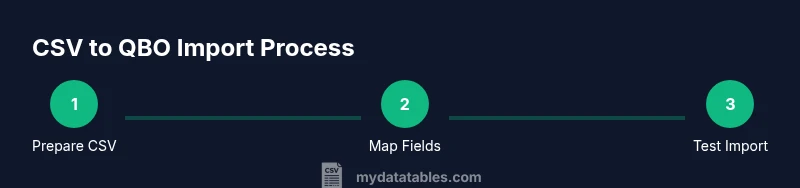
To convert a CSV to QuickBooks Online (QBO), start with a clean, UTF-8 encoded CSV and prepare a precise field map to QBO's import schema. Then validate headers, test a small import in a sandbox, and fix any errors before loading the full dataset. This guide walks you through prep, mapping, validation, and import steps.
Overview: why converting CSV to QBO matters
In many accounting workflows, CSV files are the lingua franca for data exchange. When you need to bring customer, vendor, or item lists into QuickBooks Online (QBO), a well-structured CSV is far easier to validate and map than a raw spreadsheet. The goal of this guide is to help data analysts, developers, and business users convert a CSV into a QBO-friendly format with minimal friction. By focusing on clean data, correct encoding, and reliable field mapping, you reduce import errors and preserve data integrity across your books.
Throughout this process you’ll learn how to prepare your CSV, align headers with QuickBooks fields, test with a small batch, and perform a production import confidently. You’ll also discover practical tips to maintain data quality over time and how to handle common pitfalls. This approach aligns with best practices in data interchange and CSV standards, helping you achieve predictable imports.
Prerequisites and formatting basics
Before you start the import, gather the essentials and set sane formatting rules. You’ll want a CSV that is UTF-8 encoded, uses a consistent delimiter (commonly a comma), and includes a header row with field names. QuickBooks Online relies on structured data and predictable mapping, so avoid mixed data types in a column and stray characters that break parsing. Create a simple data validation plan and keep a copy of the original CSV for rollback. If you don’t control encoding, convert the file to UTF-8 and re-check for non-ASCII characters. A clean, consistent CSV reduces rework later in the process.
In practice, you’ll also want a mapping reference that ties each CSV column to a QuickBooks field. This acts as a blueprint during the import and helps others reproduce the workflow. When possible, standardize date formats and currency values to minimize interpretation by the import engine. Finally, ensure you have a QuickBooks Online account with import permissions and a backup strategy in place.
Understanding QuickBooks Online import formats
QuickBooks Online can accept CSV data through its Import Data tool, but the accepted formats and field mappings are not always 1:1 with a generic CSV. The import process emphasizes field alignment: your CSV headers should map to QuickBooks fields, or you should rely on the tool’s mapping interface to connect them. Keep in mind that some data types (like dates, numbers, and text fields) may require normalization before import. A successful import hinges on a clear mapping plan, consistent data types, and encoding that QuickBooks can interpret without errors.
To maximize success, prepare a small test dataset that mirrors real records. This helps you verify that the mapping works and that QuickBooks correctly parses the values. If your CSV contains complex values (such as multi-line notes or special characters), consider trimming those fields or enclosing them properly with quotes to prevent misinterpretation by the import engine.
Step-by-step prep: clean and map your CSV
The prep phase is the backbone of a smooth import. Start by identifying the QuickBooks fields you intend to populate and create a mapping document that links each CSV header to its target field. Clean the data: remove invalid characters, trim whitespace, and standardize date formats and currency values. Validate that all required fields exist and that optional fields are consistently formatted. If your CSV uses multiple encodings, consolidate to UTF-8 to avoid garbled data during import. Finally, ensure there are no duplicate rows that could create duplicates in QuickBooks.
Pro tip: run a lightweight data quality check on a copy of the CSV. Look for out-of-range values, inconsistent date formats, and missing critical fields. A pre-flight check catches issues before you attempt the import and reduces the time spent on error resolution later.
Step-by-step import into QuickBooks Online
With a clean, mapped CSV, you’re ready to import. In QuickBooks Online, select the Import Data option for the data category you’re bringing in (customers, vendors, items, etc.). Upload your CSV, then review the field mappings in the import tool. Use the preview to verify that data aligns with QuickBooks’ expectations. If the system reports potential conflicts (such as duplicates), decide whether to skip, merge, or replace existing records. When you’re satisfied with the mapping, run the import in a test environment or a small batch first to catch any issues without risking a full data load.
During this step, rely on a clear mapping plan and a cautious approach. If the tool allows, enable a rollback or export a snapshot of the pre-import state. This ensures you can revert quickly if something goes wrong during production import.
Verifying data after import
Post-import validation is essential. After the import completes, verify that the data appears in the expected QuickBooks lists and reports. Check counts, key fields (like names, IDs, and dates), and any currency values that may have been reformatted. Run a few sample transactions to ensure that data behaves as expected in workflows such as invoicing or vendor payments. If discrepancies arise, compare the QuickBooks records against the source CSV and adjust your mapping or data formatting accordingly. Maintain a log of any fixes for future imports.
A thorough verification step helps catch edge cases that automated checks might miss, and it provides confidence that your data is accurate across systems.
Handling common errors and how to fix them
CSV import errors commonly point to encoding, delimiter, header mismatches, or missing required fields. Start by examining the exact error message and locate the offending column in your CSV. Ensure the column exists in the QuickBooks mapping and that the data type matches (e.g., numeric vs. text). If QuickBooks complains about dates, normalize to ISO-like formats and confirm the date field is the correct QuickBooks field. Re-encode the file if you suspect a character encoding issue, and run a smaller test import to confirm the fix before attempting a full import.
Document each error, the corrective action taken, and the outcome of the test import. This record helps with future imports and reduces repetitive troubleshooting.
Automating future imports with templates
Once you’ve established a stable process, create a reusable template for future CSV imports. Save a mapping config that can be applied to new CSV files, and maintain a script or workflow that formats and validates data before import. Automation reduces manual steps, speeds up monthly or quarterly imports, and minimizes human error. If you have data pipelines or APIs, consider integrating a lightweight ETL step that applies the mapping and produces a QuickBooks-ready CSV in a single click. Keep your template under version control so changes are tracked over time.
Best practices for CSV data quality and governance
Data quality matters when moving data between systems. Enforce consistent headers, canonicalize field values (like status or type), and standardize date and currency formats. Maintain a simple data dictionary that explains each field’s meaning and allowed values. Regularly review and refresh your import templates to reflect QuickBooks’ evolving schema and any organizational policy changes. Establish a governance routine for CSV generation, storage, and versioning to ensure reproducible imports.
Tools & Materials
- CSV file to import(UTF-8 encoded, comma-delimited preferred; include a header row)
- QuickBooks Online account(Admin access with data import permissions)
- Spreadsheet editor (Excel, Google Sheets)(For cleaning, formatting, and validation)
- Data mapping sheet or cheat sheet(Optional reference for field alignment)
- Backups and rollback plan(Create a backup of existing data before importing)
- UTF-8 validation tool or script(Optional to verify encoding and special characters)
Steps
Estimated time: 60-120 minutes
- 1
Prepare your CSV
Open the CSV in a spreadsheet editor, remove any extraneous columns, and ensure a single header row. Normalize data types and remove inconsistent values. Save a copy as the master, and keep a secondary version for testing.
Tip: Keep the original intact; perform changes on a duplicate for testing. - 2
Validate encoding and delimiter
Confirm the file uses UTF-8 encoding and a consistent delimiter (comma is typical). If you see garbled text, re-encode the file and re-save with the preferred delimiter.
Tip: Use a text editor to verify encoding; misencoded characters cause import failures. - 3
Create a mapping plan
Draft how each CSV column maps to a QuickBooks field. Include notes for any data transformations needed (e.g., date formatting).
Tip: Document required fields and any optional fields you plan to populate. - 4
Clean and standardize data
Trim whitespace, unify date formats, and convert currency to a consistent format. Remove duplicates and ensure key lookups are stable.
Tip: Standardize dates to a predictable format before import. - 5
Add required headers
Ensure all fields required by QuickBooks are present in the CSV header. Add or adjust columns as needed to satisfy the import schema.
Tip: Missing required headers are a common source of errors. - 6
Test with a small subset
Import a small batch (5–10 records) to verify mappings and data quality before a full load.
Tip: If the test fails, fix the mapping and re-test before proceeding. - 7
Import data into QuickBooks Online
Use QuickBooks Online’s Import Data tool for the chosen data type, upload the CSV, map fields, and run a preview. Do not finalize until validation passes.
Tip: Enable a rollback or snapshot if the tool supports it. - 8
Review import results
Check the imported records in QuickBooks for accuracy. Look for missing fields, misformatted values, and duplicates.
Tip: Sort and filter imported lists to spot anomalies quickly. - 9
Fix errors and re-import
Address any flagged issues, re-encode if needed, and re-run the import on a small batch to confirm the fix.
Tip: Maintain a change log of fixes and reimports. - 10
Import remaining data
Once the test passes, run the import for the remaining records. Consider batching large files to ease error handling.
Tip: Split very large files to keep the import manageable. - 11
Document and audit trail
Store the mapping reference, CSV version, and a summary of the import results for future audits.
Tip: Version-control the templates and mappings for reproducibility.
People Also Ask
What CSV formats does QuickBooks Online accept?
QBO accepts structured CSV data for lists via the Import Data tool; ensure proper encoding and field mappings before importing.
QuickBooks accepts structured CSV data for lists through the Import Data tool, as long as you map fields correctly and use UTF-8 encoding.
Do headers have to match QuickBooks field names?
Headers should map to QuickBooks fields using the import tool's mapping step. Consistent header naming simplifies the process.
Headers should map to QuickBooks fields using the tool's mapping step.
What if QuickBooks reports an import error?
Review the error message, fix the highlighted column or data issue, re-encode if needed, and re-run a test import.
Check the error message, fix the issue, and try a small test import again.
Can I automate CSV to QBO imports?
Yes. You can script preprocessing, map fields, and schedule imports via APIs or data integration tools.
Yes, you can automate with scripts or data integration tools.
Should I import large CSVs all at once?
Split large files into smaller batches to reduce risk and to enable stepwise validation.
Split large files into smaller batches for safer imports.
How can I validate data before import?
Run checks on a staging copy, confirm required fields, and perform a dry run if supported.
Do a dry run in a staging area to validate data.
Watch Video
Main Points
- Map fields precisely to QuickBooks import format.
- Validate encoding and headers before import.
- Test with a small subset first.
- Back up data prior to any import.
- Document mapping for repeatable workflows.