Convert CSV to QFX: A Practical Step-by-Step Guide
Learn to convert CSV to QFX format for import into Quicken or QuickBooks. This guide covers field mapping, tools, validation, and troubleshooting to ensure accurate imports.


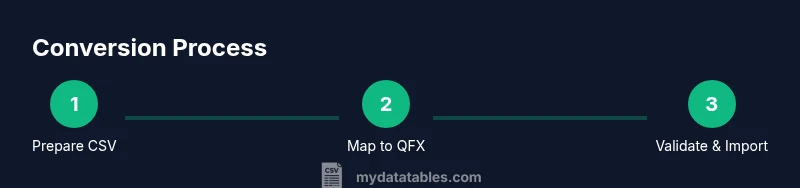
Goal: convert csv to qfx file for imports into Quicken or QuickBooks. Start with a clean CSV that includes date, amount, payee, and memo columns. Map each CSV column to a QFX field, choose a suitable converter, and run the export. Validate the resulting QFX by re-importing a sample and checking accuracy. This helps ensure reliable data transfer.
What you will accomplish and why this matters
Converting a CSV to QFX enables smooth imports into financial software such as Quicken and QuickBooks. QFX, based on the OFX standard, carries transactions, dates, amounts, payees, and memo notes in a structured way. The goal here is to preserve these data elements while transforming the file format. In practice, you will map each CSV column to a corresponding QFX field, maintain consistent date formats, and ensure the resulting file adheres to the QFX syntax. A well executed conversion reduces manual entry and errors, and helps you keep a reliable ledger across systems. This process is inherently about data integrity, compatibility, and repeatability.
Prerequisites and CSV hygiene
Before you begin the conversion, ensure your CSV is clean and consistently formatted. Remove stray characters that often break parsers, normalize line endings, and standardize column headers. A robust CSV typically includes essential fields such as date, amount, payee, and memo; optional fields like check number or category can be mapped if your target QFX schema supports them. Ensure encoding is set to UTF-8 and that decimal separators match your environment. If your CSV contains multiple accounts, plan how you will represent account identifiers in QFX to keep transactions traceable.
Understanding QFX basics and field mapping
QFX is a transaction oriented interchange format that many financial apps read during import. A converter must translate your CSV fields into QFX tags such as date, amount, payee, memo, transaction type, and account identifiers. The most critical step is establishing a one-to-one mapping between each CSV column and the corresponding QFX field. Keep the mapping documentation handy so you can reproduce the exact results later. If you have multiple currencies, ensure your converter preserves currency codes and uses a valid QFX representation.
Choosing a conversion approach
You have multiple pathways to perform a CSV to QFX conversion. A scripted approach (for example, using Python) offers maximum control and repeatability, especially when dealing with large datasets or complex mappings. Dedicated conversion software or online tools can be quicker for simple cases but may lack fine grained validation. Whichever route you pick, prioritize data validation, clear mapping rules, and a test import workflow to detect discrepancies before you touch live accounts.
Detailed field mapping workflow
- List required QFX fields that your target software expects, such as date, amount, payee, memo, and reference. 2) Create a corresponding mapping table that ties each CSV column to a QFX field, including data type and formatting notes. 3) Normalize date formats to your chosen standard, and ensure that negative amounts or refunds are represented consistently. 4) Validate amounts against known totals in a sample; flag any anomalies for review. 5) Prepare a minimal test set of transactions to confirm the converter writes valid QFX syntax. 6) Generate the QFX file and verify syntax using a parser or validator.
Building a practical converter outline (Python focus)
This section outlines a high level approach to build a converter in Python. Read the CSV with a library like pandas, apply the field mappings, convert date strings to ISO style, format amounts with fixed decimals, and emit a QFX compliant text file. Use error handling to catch missing fields and incorrect formats. Keep the converter modular so you can reuse the mapping logic for other formats in the future.
Validation, testing, and import verification
After generating the QFX file, perform a staged validation • Open the QFX in a viewer or a test environment to inspect each transaction. Import the file into a sandbox version of your financial software to confirm all fields appear correctly and totals align. If a transaction imports incorrectly, trace it back to the mapping step, fix the CSV data or the converter logic, and re-run the export. Maintain a changelog of fixes to support auditability.
Common pitfalls and resilient practices
Date mismatches, currency codes, and missing optional fields are the most frequent issues. Always normalize dates, verify currency codes, and avoid using nonstandard separators. Keep a backup of the original CSV, run a small batch of transactions first, and gradually scale up after confirming accuracy.
End-to-end example scenario (conceptual)
Imagine you have a CSV with columns Date, Amount, Payee, Memo, and Account. You map them to QFX equivalents, convert dates to the standard, ensure amounts carry proper decimal precision, and create a QFX file. You then import this file into your financial software and spot check a few transactions for consistency. This end-to-end loop demonstrates how the pieces fit together and helps you build confidence in the process.
Tools & Materials
- CSV file with transactions(Must include at least date, amount, payee, and memo columns; ensure headers are consistent.)
- QFX conversion tool or script(Could be a Python script, a desktop app, or an online converter; ensure it supports field mapping.)
- Text editor(For editing CSV templates or mapping rules when needed; use a monospaced editor for clarity.)
- Python 3.x (optional if using script)(Useful for full control and automation; install pandas for CSV handling.)
- CSV validator or test environment(Helps verify CSV integrity before conversion; enables safer imports.)
Steps
Estimated time: 30-90 minutes
- 1
Prepare the CSV
Open the CSV and verify it contains date, amount, payee, and memo columns with clean data. Normalize date formats and ensure there are no stray characters or mislabeled headers. Save a copy for testing.
Tip: Keep the original file unchanged; work on a duplicate during the conversion trial. - 2
Define the QFX mapping
Create a mapping plan that links each CSV column to a QFX field. Document the data types and any required formatting rules so the converter can apply them consistently.
Tip: Document any special cases such as refunds or multi-line memos to avoid misinterpretation. - 3
Choose a conversion method
Decide between a scripted approach for control or a GUI/online tool for speed. Consider data volume, need for repeatability, and your comfort with scripting.
Tip: If using a script, modularize mapping logic to reuse for other formats later. - 4
Run the converter
Execute the converter to generate the QFX file from the CSV data. Monitor for errors and capture any warning messages for review.
Tip: Log the input and output paths to simplify troubleshooting. - 5
Validate the QFX output
Open the generated QFX with a viewer or import into a test account. Check a sample of transactions for date accuracy, amounts, and payee fidelity.
Tip: If a few fields are off, adjust the mapping or data normalization rules and re run. - 6
Import and verify in software
Import the final QFX into the target software and verify totals and categories align with the source CSV. Confirm headers and accounts appear correctly.
Tip: Backup your financial software data before imports and perform a dry run on a small batch.
People Also Ask
What is a QFX file and why convert CSV to QFX?
QFX is a data interchange format used by many finance apps. Converting CSV to QFX enables you to import transactions directly into software like Quicken or QuickBooks, saving manual entry and reducing errors.
QFX is a standard format for financial transactions. Converting CSV to QFX helps you import data into your finance apps with fewer manual steps.
Can I convert CSV to QFX without programming?
Yes. There are desktop tools and online converters that support CSV to QFX conversion. However, ensure the tool offers field mapping, validation, and export to QFX to avoid data loss.
Yes, you can use a converter tool. Look for field mapping and validation features to ensure accuracy.
What CSV fields are required for QFX conversion?
At minimum, you need date, amount, payee, and memo fields. Depending on the QFX version, you may also include account identifiers and transaction references.
Date, amount, payee, and memo are typically required; other fields may be optional depending on the converter.
How do I handle date format differences?
Convert all dates to a consistent format before converting to QFX. ISO 8601 is a common choice, but ensure your converter accepts the chosen format.
Standardize dates before conversion to avoid import errors.
How long does the conversion take?
Time depends on data volume and tool complexity, ranging from minutes for small files to longer when complex mappings are needed.
It varies by data size but expect a short wait for small files and longer for large datasets.
Is data loss possible during conversion?
Data loss is unlikely with a well planned mapping and validation process. Always test with a subset and verify every field post conversion.
If you map fields correctly and validate, data loss should be minimal.
What if I need to convert frequently?
Automate the process with a reusable script or workflow and maintain versioned mapping rules to ensure consistency over time.
Automation helps keep conversions consistent over time.
Can I convert other formats to QFX later?
Yes. Start with a robust mapping framework; you can adapt it to support additional input formats as needed.
A strong mapping framework makes it easier to add new formats.
Watch Video
Main Points
- Map fields carefully to preserve data integrity
- Test with a small batch before full import
- Validate dates, amounts, and payees to avoid errors
- Document mapping rules for repeatability