CSV to IIF Converter: A Practical Guide for QuickBooks Imports
Learn to convert CSV data into QuickBooks IIF files with a reliable, repeatable workflow. This guide covers data mapping, validation, testing, and best practices for accurate, error-free imports.


Goal: learn how to build a csv to iif converter that transforms CSV data into QuickBooks IIF files. You’ll map CSV columns to IIF records, validate outputs, and test imports in a safe sandbox. Essential prerequisites include a sample CSV with headers, an IIF template, and a preferred scripting or automation tool.
What is a CSV to IIF Converter and why you need one
A csv to iif converter is a tool or script that translates data stored in a comma-separated values file into the QuickBooks Interchange File Format (IIF). IIF is used by QuickBooks to import transactions, lists, and other data. If your data lives in CSVs—whether exports from a CRM, ERP, or ecommerce platform—a converter reduces manual data entry and minimizes human errors during import. According to MyDataTables, a disciplined conversion process with clear field mappings dramatically lowers post-import cleanup time and reconciliation effort. For teams handling payroll, invoices, and chart-of-accounts changes, a reliable converter makes a reproducible workflow, improves data integrity, and supports audit trails. This guide walks you through designing and implementing a robust csv to iif converter workflow that you can reuse across projects.
What You’ll Learn
- How to map common CSV columns to IIF records (journal entries, invoices, payments, etc.)
- Data validation checks that catch formatting or encoding errors before import
- A step-by-step approach to build, test, and deploy a converter
- Tradeoffs between building in-house vs. using off-the-shelf tooling
Why IIF Matters for QuickBooks Imports
QuickBooks relies on a strict IIF format for bulk imports. While QuickBooks Online has limitations, the desktop versions deeply support IIF for batch processing of lists and transactions. A converter helps you maintain a single source of truth for field names, data types, and validation rules, aiding consistency across multiple periods and entities. It also enables versioning of import templates so you can roll back problematic changes without touching live books.
Brand and Process Context
In enterprise data workflows, maintaining a repeatable, well-documented mapping is critical. The MyDataTables team recommends documenting every column transformation, including default values, optional fields, and error-handling behavior. A clear spec reduces dependency on individualized knowledge and speeds up onboarding for new analysts.
Tools & Materials
- CSV file with headers(Cleaned sample focusing on import-relevant columns (date, account, amount, memo, etc.))
- IIF template or sample IIF(Baseline structure for the target IIF file, including necessary headers)
- Text editor or IDE(Prefer editors with good JSON/CSV syntax support and code folding)
- Scripting runtime (Python/Node.js) or Excel(Choose based on team skills and deployment needs)
- CSV validator or schema (optional)(Optional but helpful for upfront validation)
- Test dataset for validation(A representative slice of production data including edge cases)
Steps
Estimated time: Approximately 1-3 hours for a basic converter, longer for large, complex datasets
- 1
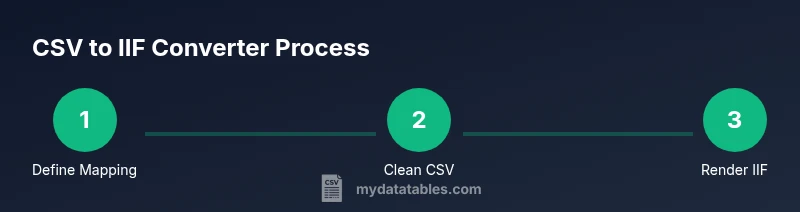
Define target IIF structure
Identify which IIF records you will import (e.g., JRN for journal entries, INV for invoices). Create a mapping guide from each CSV column to the corresponding IIF field. Establish default values and optional fields.
Tip: Document the expected data types for each IIF field and set up a schema to validate the CSV before conversion. - 2
Prepare and clean the CSV
Normalize headers, trim whitespace, and standardize date formats. Remove extraneous columns that don’t map to IIF fields. Ensure numeric columns use period decimal separators if required.
Tip: Run a quick sanity check to ensure every row has a required field and that dates are parseable. - 3
Design the mapping rules
Create a mapping table that pairs each CSV column with an IIF field, including transformation logic (e.g., date formatting, account name normalization). Decide how to handle missing values.
Tip: Use explicit defaults and guard clauses to prevent malformed IIF blocks. - 4
Implement the converter
Choose your tech (Python, Node.js, or Excel macros) and implement the transformation logic. Generate IIF blocks line-by-line to ease debugging and auditing.
Tip: Modularize the code so the mapping, validation, and IIF rendering are isolated tests. - 5
Validate with test data
Run the converter on a labeled test dataset, compare key fields against expected IIF outputs, and capture any discrepancies for debugging.
Tip: Automate a diff check that flags any mismatch between expected and actual IIF content. - 6
Test import in QuickBooks sandbox
Import the generated IIF into a sandbox QuickBooks instance. Verify transaction integrity, ledger consistency, and error messages.
Tip: Keep a log of import errors and map each error back to the source CSV row for quick fixes.
People Also Ask
What is an IIF file and why do I need a converter?
IIF is the QuickBooks import format. A converter translates standard CSV data into IIF so bulk updates can be automated and repeated with fewer manual steps.
IIF is QuickBooks' import format, and a converter automates the CSV to IIF translation.
Can I use Excel or Python to build the converter?
Yes. You can leverage Excel macros for simple tasks or Python for scalable, testable pipelines. The key is modular design and clear mappings.
Yes, Excel or Python work well, but keep the code modular and well-documented.
What are common CSV requirements for IIF imports?
CSV should include headers that map to IIF fields, consistent date formats, and numeric values without locale-specific separators unless supported.
Your CSV should have clear headers, consistent dates, and clean numbers for reliable IIF generation.
How do I test an IIF import safely?
Test in a QuickBooks sandbox or a duplicate company file to verify ledger effects before importing live data.
Test in a sandbox to confirm the import behaves correctly without impacting live data.
Is there a ready-made IIF converter I can customize?
There are templates and tools, but for best accuracy you should tailor the converter to your data model and auditing needs.
There are templates, but customization is recommended for accuracy and auditing.
Where can I find official IIF documentation?
Look for QuickBooks developer resources and official user guides that describe IIF line items, records, and formatting rules.
Check QuickBooks docs for IIF formatting rules and examples.
Watch Video
Main Points
- Define a precise IIF mapping first
- Validate data before transformation
- Test in a sandbox environment
- Document changes and maintain versioned templates