CSV to QFX Converter: A Practical Guide
Learn how to convert CSV to QFX for Quicken and other financial software. This comprehensive guide covers formats, mapping, validation, and best practices with practical steps and tips.


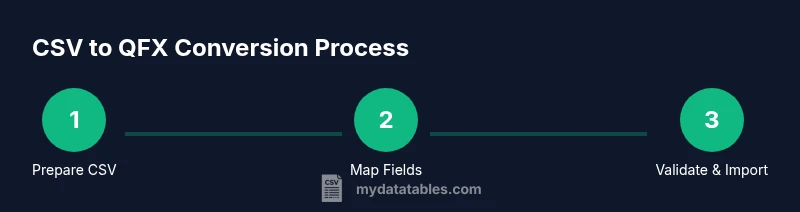
By the end of this guide, you’ll be able to convert a CSV file into a valid QFX file suitable for import into Quicken or other compatible software. You’ll learn two practical methods—using a dedicated converter or scripting—how to map common fields, and how to validate the output to avoid import errors. Essential prerequisites include a clean CSV, a converter, and a basic mapping document.
CSV vs QFX formats: a quick primer
CSV (Comma-Separated Values) is a plain-text format that stores tabular data in rows and columns. It’s simple, portable, and easy to generate from spreadsheets, databases, or logs. QFX (Quicken Financial Exchange) is a transaction-oriented file format used by Quicken and compatible personal finance software. It encodes transactions with tags that describe dates, amounts, payees, and memos, and it often requires precise field names and encoding. Understanding these two formats helps you plan mappings, validation rules, and error handling before you begin conversion. In practice, you’ll map CSV columns (Date, Description, Amount, etc.) to QFX transaction fields (DATE, TRNAMT, NAME, MEMO, etc.). The goal is to preserve the integrity of your transactions while making the resulting QFX readable by your finance software.
Why CSV and QFX pair well for financial data
For analysts and business users, CSV is a universal export format from most systems. QFX is purpose-built for import into finance apps. When you convert CSV to QFX, you gain the ability to import into Quicken, QuickBooks with OFX/QFX adapters, or other OFX-compliant tools. This pairing allows you to reconcile accounts, preserve historical records, and automate monthly imports. However, this process hinges on correct field mappings, precise date formats, and careful handling of encoding to avoid data corruption.
Common approaches to CSV to QFX conversion
There are three broad paths you can take. First, use a dedicated converter tool designed specifically for CSV-to-QFX workflows. These tools provide predefined mappings, validation, and export options, reducing manual setup. Second, implement a scripting-based workflow using a language like Python to parse CSV, perform transformations, and emit a QFX-like output. This approach excels when you have unique field mappings or batch-processing needs. Third, leverage hybrid solutions: a mapping template in a converter plus a small script to preprocess data. Each approach has trade-offs in flexibility, speed, and accuracy.
Data mapping and validation essentials
Mapping is the heart of CSV-to-QFX conversion. You’ll align your CSV headers with the QFX fields required by your target application, handle date formats (e.g., MM/DD/YYYY vs. YYYY-MM-DD), and ensure amounts use the correct sign conventions. Validation should verify that dates are valid, amounts are numeric, and required fields (like FITID for unique transaction IDs) are present. After conversion, perform a test import into a sandboxed Quicken profile to catch structural or encoding errors before affecting your live data.
Common pitfalls and best practices
Pitfalls include mismatched date formats, incorrect currency encoding, missing or duplicate transaction IDs, and unsupported characters. To avoid these issues, standardize your CSV headers, normalize dates to a single format, and test with a small sample before processing large files. Maintain a changelog of mappings and configurations so you can reproduce successful conversions. Always back up your financial data before imports and, if possible, enable a dry-run feature in your converter to preview the output without writing to disk.
Tools & Materials
- CSV file with clearly labeled headers(Headers should map to common financial fields (Date, Description, Amount, Payee, Category). Use a consistent date format.)
- QFX-capable converter or script template(Choose a tool that supports custom field mappings and validation.)
- Text editor or IDE(Useful for editing mapping templates and scripts.)
- Validation tool or test import profile(Helps catch encoding or structural issues before full import.)
- Sample mapping document(Keeps mappings consistent across files and projects.)
Steps
Estimated time: 60-90 minutes
- 1
Prepare your CSV
Ensure your CSV uses a consistent header row and a uniform date format. Normalize amounts to a single currency if possible. Save a clean copy for conversion.
Tip: Back up the source CSV before processing. - 2
Choose a conversion method
Decide between a dedicated converter tool or a scripting approach based on your needs and scale. If you have unique mappings, scripting offers flexibility.
Tip: If uncertain, start with a converter to validate the mapping basics. - 3
Define field mappings
Create a mapping document that ties each CSV header to a QFX field (e.g., Date → DATE, Description → MEMO). Include note on date formats andAmount signs.
Tip: Document any edge cases, such as refunds or transfers. - 4
Configure the converter
Load your mapping into the converter, set encoding to UTF-8, and choose the target QFX structure. Enable any pre-validation options available.
Tip: Run a dry run if supported to preview output. - 5
Run the conversion
Execute the conversion, ensuring the output file is saved with a .qfx extension. Keep an eye on any warnings reported by the tool.
Tip: Check for missing mandatory fields like FITID. - 6
Validate the QFX file
Open the QFX in a text editor or validator to confirm tags and encoding. Perform a test import into a safe Quicken profile.
Tip: If import fails, compare the first few transactions for field mismatches. - 7
Import and reconcile
Import the QFX into your finance software and reconcile the results against the source CSV data. Look for discrepancies in dates, amounts, and payees.
Tip: Keep a log of changes for auditability.
People Also Ask
What is the QFX format and why is it used?
QFX is a Quicken-friendly format used to transfer financial transactions. It is designed for easy imports into personal finance software and supports essential transaction-level data.
QFX is a Quicken-friendly format that helps you import transactions into personal finance software smoothly.
Can any CSV be converted to QFX?
Not all CSV files convert cleanly to QFX. The key is consistent structure, proper headers, and complete transaction fields matching the target format. Some CSVs require preprocessing before mapping.
Not every CSV converts cleanly; you often need consistent headers and complete fields.
Do I need programming knowledge to convert CSV to QFX?
You can accomplish this with dedicated converter tools that provide mapping interfaces. Scripting offers more customization but requires knowledge of a language like Python.
You can use a converter tool or scripts if you know Python or another language.
What are common pitfalls during conversion?
Date mismatches, missing unique IDs, and incorrect encoding are frequent issues. Validate outputs with test imports to catch problems early.
Common issues include date mismatches and missing IDs; always test first.
Is there a best-practice workflow for large datasets?
Yes. Start with a smaller sample, build a mapping template, run batch conversions, and validate each batch before processing the full dataset.
Yes—test with small batches, then scale up after validation.
How can I verify that the QFX file imported correctly?
Perform a reconciliation by comparing totals and key fields between the source CSV and the imported transactions in your finance software.
Compare totals and key fields to ensure accuracy after import.
Watch Video
Main Points
- Map CSV fields to QFX with a documented workflow.
- Validate output with a test import to catch errors early.
- Back up data before any conversion or import.
- Choose a method (converter vs scripting) that fits your scale and customization needs.