Convert PDF Bank Statements to CSV: A Practical How-To Guide
Learn practical, step-by-step methods to convert PDF bank statements to CSV, with OCR options, data cleaning, and validation. Free and paid tools, plus automation tips.


If you need to convert pdf bank statements to csv, use OCR when needed, then clean and validate the data for reliable analysis. This guide covers free and paid tools, data quality checks, and steps to automate recurring statements. You’ll learn practical strategies to handle text-based and scanned PDFs, preserve dates and currencies, and reduce manual rework.
Why converting pdf bank statements to csv matters
Converting pdf bank statements to csv unlocks data portability and enables reliable analysis across spreadsheets and BI tools. For data analysts, developers, and business users, CSV is the lingua franca of structured data. According to MyDataTables Analysis, 2026, converting pdf bank statements to csv enhances data accessibility, supports reproducible workflows, and makes downstream processing easier. When you export to CSV, you can apply filters, perform joins with other datasets, and feed statements into dashboards. This shift from fixed-form PDFs to flexible text-based data reduces manual re-entry and minimizes transcription errors. That said, PDFs can vary widely in how tables are laid out, which means your workflow must handle multi-page tables, merged cells, and inconsistent column widths. Planning a repeatable, auditable process is the key to consistent results. Also, consider data privacy and secure handling of sensitive financial information throughout the workflow.
Understanding the structure of PDF bank statements
PDF bank statements typically present data as tables that span multiple pages. You may encounter a header row repeated on each page, multiline descriptions, and small font or scanned images that complicate extraction. Text-based PDFs are easier to parse because the data exists as selectable characters, but even then, column boundaries aren’t guaranteed to align perfectly when exported. Scanned PDFs require OCR (optical character recognition) to convert images of text into machine-readable data. Regardless of format, preserving essential fields—date, description, merchant/payee, amount, debit/credit, and running balance—is crucial. Your goal is to map each line item to a stable CSV schema: date (YYYY-MM-DD), description, category (optional), amount (numeric), and balance (numeric). Keep an eye on encoding (UTF-8 is standard) and decimal separators to avoid misinterpretation in downstream tools.
Step-by-step overview of conversion approaches
There isn’t a single magic button for pdf-to-csv; most reliable workflows blend a few methods. Start with assessing the PDF type (text-based vs scanned). If text-based, you may export or copy-paste into a CSV-friendly editor. If scanned, apply OCR before extraction. For recurring statements, a lightweight automation script can normalize data into a consistent CSV schema. In practice, many teams use a hybrid approach: OCR for the initial extraction, then manual or semi-automated cleanup, followed by a validation pass against the original PDF. MyDataTables emphasizes designing a repeatable pipeline that accounts for layout variations and ensures traceability from source to CSV.
Method 1: OCR-based extraction
OCR-based extraction is essential for scanned PDFs. Start by choosing an OCR tool that preserves tabular layouts and supports language settings and column recognition. Configure the tool to detect tables, set the correct page range, and export to CSV or an intermediate Excel format. After export, open the CSV in a spreadsheet editor and check that each column lines up with the intended data fields. OCR accuracy depends on font clarity, page skew, and column boundaries; be prepared to correct misreads in the data cleaning phase. To maximize accuracy, run OCR on high-quality scans and consider performing OCR one page at a time if the document is very long.
Method 2: Table-aware copy-paste or free tools
If the PDF contains selectable text, you can often extract data by copying the table and pasting it into a spreadsheet with careful alignment. Some PDF readers offer a dedicated export option (CSV or Excel) that preserves table structure. In many cases, you’ll still need to tidy up header rows, merge repeated headers, and normalize white space. Use 'Text to Columns' or similar features to split combined fields and ensure dates, amounts, and balances are in their own columns. Free tools and browser-based converters can work for simple statements, but they frequently require manual corrections for multi-page tables and long descriptions.
Method 3: Dedicated PDF-to-CSV software (paid) vs open-source options
Paid PDF-to-CSV software often provides advanced table recognition, batch processing, and scripting capabilities that streamline repetitive tasks. Open-source or free tools can be sufficient for smaller statements, but they may lack robust table-aware parsing or batch automation. When evaluating tools, look for: (a) reliable table extraction with column alignment checks, (b) ability to export to CSV with consistent encoding, (c) options to post-process data (trim spaces, normalize decimals), and (d) audit trails for source-to-output traceability. For teams needing repeatable workflows, consider adding a lightweight scripting layer (Python, for example) to clean and validate data after export.
Cleaning and validating CSV data after extraction
Extraction rarely yields perfectly formatted CSV on the first pass. Clean up common issues: stray characters from the PDF layout, merged or split columns, and inconsistent date formats. Normalize dates to ISO format (YYYY-MM-DD) and ensure monetary values use a consistent decimal separator (dot). Create a simple validation checklist: verify the total of debits equals the expected change in the running balance, confirm the date range matches the statement period, and spot-check a random sampling of line items for accuracy. Maintaining a reproducible cleaning pipeline—via scripts or macros—helps ensure consistency across months and accounts.
Automating the workflow for repeated statements
Automation is the key to scaling this process. Build a repeatable pipeline: (1) fetch or receive the PDF, (2) run OCR if needed, (3) extract data to CSV, (4) run a cleaning/normalization script, (5) perform validation checks, and (6) save the final CSV with a clear naming convention. Schedule the pipeline using a simple task scheduler or a lightweight workflow tool. Logging every step is essential for audits and debugging. For teams using Python, a small pandas-based script can read the extracted data, enforce the target schema, and generate a clean, production-ready CSV.
Common pitfalls and how to avoid them
Be aware of layout variability between statements and even within the same statement across months. Avoid assuming perfect table alignment after export; always verify column boundaries and sample data. OCR can introduce misreads for similar-looking characters (0 vs O, 1 vs l). Always run a final quality check and keep an auditable trail of the tools and versions used.
Summary of the workflow (quick reference)
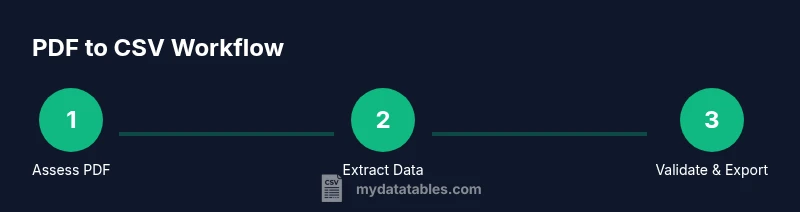
- Assess PDF type (text vs scan). 2) Choose OCR or export method. 3) Extract data to CSV. 4) Clean and normalize fields. 5) Validate against the source. 6) Save and document the process for future use.
Tools & Materials
- PDF viewer and navigation tools(Open the bank statement PDF, verify page range, and capture pages with tables.)
- OCR software or OCR-capable PDF tool(Needed for scanned PDFs; ensure it can preserve tabular layouts and export to CSV.)
- PDF-to-CSV converter tool(Standalone software or integrated feature in a PDF editor; look for batch processing support.)
- CSV editor or spreadsheet program(Excel, Google Sheets, or LibreOffice Calc for quick checks and basic formatting.)
- Data-cleaning script or library (optional but recommended)(Python with pandas or OpenRefine can automate normalization and validation.)
- Quality assurance template(A checklist to confirm dates, amounts, and balances align with the source.)
Steps
Estimated time: 1 hour 45 minutes
- 1
Assess the PDF quality
Open the PDF and determine if the text is selectable or if pages are scanned images. If you can copy text from the table, you may start with export or copy-paste. If not, OCR will be required.
Tip: If multi-page, note the page range and whether headers repeat on each page. - 2
Choose your conversion method
Decide between an OCR-based extraction for scanned PDFs, or a direct export for text-based statements. Consider the document length, table complexity, and your automation needs.
Tip: For recurring statements, plan for an automated path rather than ad-hoc manual steps. - 3
Extract data to CSV
Run OCR or export to CSV/Excel, then open the result in a spreadsheet to inspect column alignment and header consistency. Ensure essential fields exist: date, description, amount, balance.
Tip: Export to CSV first; if you must export to Excel, convert to CSV later to standardize encoding. - 4
Clean and normalize the data
Apply consistent encoding (UTF-8), normalize dates to YYYY-MM-DD, and standardize currency formatting. Remove extraneous characters and adjust column boundaries as needed.
Tip: Use 'Text to Columns' or a data-cleaning script to apply consistent rules across all rows. - 5
Validate the output
Cross-check totals, verify date ranges, and spot-check random rows against the source. Ensure that the running balance matches the posted transactions.
Tip: Create a small test suite: a few representative pages per statement. - 6
Save and document
Save the final CSV with a clear naming convention and add notes about the source PDF, extraction method, and version. Keep an audit trail for compliance.
Tip: Version-control the workflow and outputs for traceability.
People Also Ask
Do I need OCR to convert a scanned PDF bank statement to CSV?
Yes. Scanned PDFs contain images of text, so OCR is required to convert them into machine-readable data before CSV export.
Yes, OCR is necessary if the PDF is scanned and not selectable text.
What is the best approach for simple, text-based PDFs?
If the PDF has selectable text, you can export to CSV or paste into a spreadsheet, then tidy any misalignments. This generally requires less cleanup than OCR.
If the PDF is text-based, export or copy-paste and then clean up formatting.
How do I validate the CSV to ensure accuracy?
Cross-check a sample of transactions against the PDF, verify totals and dates, and run basic arithmetic checks on balances to ensure consistency.
Check a sample of entries and verify totals against the source.
Can I automate this for monthly bank statements?
Yes. Build a repeatable pipeline and schedule it to run when new PDFs arrive. Include logging and error handling for reliability.
Yes, you can automate monthly statements with a script and scheduler.
Which tools are best for beginners?
Start with a straightforward OCR tool and a CSV editor; as you gain experience, add a cleaning script for consistency.
For beginners, use a simple OCR and a CSV editor, then add automation later.
How should I handle multi-page PDFs with long tables?
Treat each page separately or use a tool that supports repeating headers and consistent column mapping across pages.
Process one page at a time and keep the column structure consistent.
Watch Video
Main Points
- Assess PDF type before extraction
- Preserve table structure to minimize cleanup
- Validate totals and dates after export
- Automate for recurring statements
- Document the workflow for audits