Convert PDF to CSV Online: A Step-by-Step Guide
Learn how to convert PDF to CSV online with confidence. Compare tools, preserve table structure, handle OCR, and validate output for clean data ready for analysis.


Goal: convert a PDF table to CSV online quickly, accurately, and securely. This guide helps you pick a reputable converter, upload your PDF, configure table extraction, verify headers, and export CSV for analysis. You’ll compare free and paid tools, learn practical tips, and avoid common pitfalls, so your resulting CSV is ready for MyDataTables workflows.
What you can accomplish with online PDF to CSV conversions
Online PDF to CSV conversions are powerful when you need to turn tabular data from reports, invoices, or research papers into a structured CSV file. The process leverages optical character recognition (OCR) for scanned documents and table-detection algorithms for native PDFs. The MyDataTables team has found that the best online tools deliver consistent table detection, preserve headers, and provide clear options for encoding and delimiters. When used correctly, you can extract multi-page tables, merge repeated headers, and output a clean CSV that feeds directly into data pipelines or spreadsheet analyses. This capability is especially valuable for analysts who frequently ingest PDFs into databases, dashboards, or data lakes. Remember that the quality of your PDF and the chosen tool jointly determine the final CSV quality, so plan for a few quick checks after export and be prepared to post-process in a spreadsheet if needed.
For privacy-sensitive data, prioritize tools with transparent policies and the option to download locally instead of uploading to a cloud server. In our experience, a careful setup reduces errors and saves time downstream. According to MyDataTables, focusing on data fidelity and reproducibility saves analysts from manual re-entry and formatting chores later. If you routinely convert PDFs, consider building a small workflow that saves input PDFs and versioned CSV outputs for auditability.
Key features to look for in a PDF-to-CSV online tool
When choosing an online converter, you want reliability, clarity, and control. Look for: clear table-area detection, support for headers, options for selecting which pages to convert, and robust handling of multi-row headers. Encoding options (UTF-8 is ideal for multilingual data), delimiter choices (comma, semicolon, tab), and the ability to review a live preview before exporting are crucial. OCR quality matters especially for scanned PDFs; high-accuracy OCR with language settings improves results. A simple drag-and-drop interface helps a lot, but you should also check review features that let you adjust misread characters, merged cells, or split merged headers. Finally, consider privacy and data-handling policies: you want tools that delete uploads promptly and offer offline alternatives if needed. In practice, you’ll often switch between a free option for small tasks and a paid plan for larger, sensitive datasets. MyDataTables analysis shows that organizations benefit from selecting tools with enterprise-grade security, especially when working with customer data or financials.
To maximize accuracy, test a sample table before committing a full extraction, and compare results across two tools if the dataset is critical. This approach helps identify tool-specific quirks, such as how a tool handles decimal points or date formats, reducing surprises in downstream analysis.
Challenges with PDFs: headers, multi-page tables, and OCR
PDFs are not database files; they’re designed for presentation. Converting them to CSV requires careful handling of headers, row alignment, and sometimes language/character recognition. Common problems include headers being repeated on every page, merged cells, and misread characters for symbols like currency signs. Multi-page tables often require stitching logic to ensure continuity across pages, especially when header rows repeat. OCR introduces another layer of complexity: language settings, font choices, and the presence of scanned images rather than text. Dealing with these challenges effectively means choosing tools that offer page-range selection, header detection, and post-export editing features. If you’re working with scanned PDFs, OCR accuracy is your friend but also your potential risk: you may need to correct misread digits or units after export. A careful approach—test, preview, and correct—helps you preserve data integrity and avoid downstream errors in analysis pipelines.
How to prepare your PDF for a clean CSV
Preparation is half the battle. Start with selecting the right page range and confirm that the PDF’s tabular sections are clearly delineated. If you’re dealing with a document that uses light punctuation or unusual decimal markers, note these patterns before converting. Before uploading, extract any sensitive or personally identifiable data to maintain compliance with your organization’s data policies. If the PDF is native (text-based), ensure the table borders are strong enough for the tool to detect. For scanned PDFs, verify that the OCR language matches the document’s language to improve recognition accuracy. If you have control over the source, exporting from the original software to a PDF with embedded text (not scanned images) will result in cleaner CSVs. Finally, consider splitting very large PDFs into smaller chunks to prevent tool timeouts and to help you compare results across pages for consistency.
Real-world scenarios and examples
Consider a quarterly sales report saved as a PDF with multiple tables across several pages. You want to extract the product, region, and revenue columns into a CSV for import into your data warehouse. An online converter with strong table-detection and header-preservation features will help you capture the core columns accurately. For a government form or academic paper with tables embedded in dense text, you may encounter merged cells or multi-row headers. In such cases, you can run separate conversions for each table, then merge them in a spreadsheet. If you’re working with a supplier invoice, you might need to map fields like InvoiceNumber, Date, Amount, and Tax to a CSV schema. After export, run a quick data-cleanup pass: trim whitespace, standardize date formats, and ensure numeric values use the correct decimal separator. These practical steps reduce rework and support a smooth data pipeline.
Privacy, security, and best practices
Online converters can process data remotely, which raises privacy concerns for sensitive PDFs. Always review the tool’s privacy policy, and favor providers with strong data deletion guarantees and encryption during transmission (HTTPS). For particularly sensitive material, consider offline tools or on-premise software that runs locally on your machine, thereby keeping data out of the cloud. If you choose online services, avoid uploading full personal records unless required; use sample data or redacted files when possible. Another best practice is to keep a changelog of the CSV outputs, including the tool used, the page range, and any post-processing steps. This makes audits easier and supports reproducibility in data projects. Finally, test multiple tools on the same document to understand how variations in OCR and table detection affect your results, and select the tool that consistently delivers reliable headers and clean data. MyDataTables recommends documenting your chosen workflow so teammates can reproduce results with confidence.
Beyond CSV: alternatives and automation
CSV is widely compatible, but other formats—like Excel (.xlsx), JSON, or Parquet—might better serve certain pipelines. Some tools allow direct export to these formats, eliminating intermediate steps. If you perform frequent PDF-to-data tasks, you can automate them with scripting languages (Python, for example) using libraries that handle PDF parsing and CSV serialization. For teams that require repeatable processes, building a lightweight automation script that triggers when a new PDF is added to a watch folder can save hours. Combining an OCR-capable converter with a small transformation script lets you standardize column names, data types, and encoding across thousands of documents. The MyDataTables team suggests starting with one reliable converter and then incrementally adding automation as your needs grow, ensuring each step remains auditable and controllable.
Tools & Materials
- Web browser (Chrome/Edge/Firefox)(Keep the browser up to date; disable aggressive pop-ups during uploads)
- Stable internet connection(A wired or reliable Wi-Fi connection reduces upload time and timeouts)
- PDF document to convert(Prefer PDFs with embedded text; for scanned PDFs OCR may be needed)
- CSV editor or spreadsheet software(Excel/Sheets can help validate formatting after export)
Steps
Estimated time: 15-25 minutes
- 1
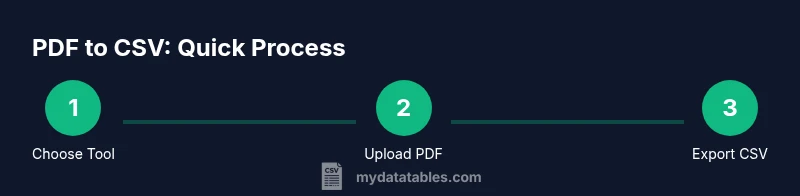
Choose a reputable online converter
Assess options based on privacy policy, encryption, and user reviews. Pick a tool that clearly states data handling and offers a preview before export.
Tip: Prioritize tools with HTTPS and explicit deletion timelines for uploaded data. - 2
Upload your PDF
Use the tool’s upload interface to select the PDF. If the file is large, consider uploading in batches or using a tool that supports resumable uploads.
Tip: If the file contains sensitive data, avoid public machines and use a private workspace. - 3
Configure extraction settings
Enable table detection, choose header rows, and set the correct pages. Select the desired delimiter and encoding (UTF-8 is recommended for multilingual data).
Tip: Review the live preview to confirm alignment before exporting. - 4
Preview and adjust
Scan the preview for misreads, merged cells, or misaligned columns. Correct issues using the tool’s edit features or plan post-export cleanup.
Tip: If headers repeat on every page, enable the 'single header' option if available. - 5
Export as CSV
Choose the CSV option with the proper delimiter and UTF-8 encoding. Save the file with a clear, versioned name.
Tip: Export with a test filename first to verify formatting in your editor. - 6
Validate in a spreadsheet
Open the CSV in Excel or Sheets to confirm data rows, header mappings, and numeric formats. Correct any anomalies with simple find/replace or small scripts.
Tip: Check date formats and decimal separators to prevent downstream errors. - 7
Store and document
Archive the original PDF and the resulting CSV with a short note about tool choice and options used. Keep a versioned history for audits.
Tip: Maintain a changelog linking the CSV to its source PDF for traceability.
People Also Ask
Is PDF to CSV conversion always accurate?
No; accuracy depends on the PDF type (native text vs scanned) and the tool's OCR/table-detection quality. Always validate the CSV after export and plan post-processing for edge cases.
Accuracy depends on the PDF type and OCR quality. Validate the CSV after export.
Do online converters preserve formatting and headers?
Good tools preserve headers and basic formatting, but some complex tables may require manual adjustments after export. Always review the preview before exporting.
Most tools preserve headers, but complex tables may need editing after export.
Can scanned PDFs be converted effectively?
Yes, using OCR. The quality depends on language settings and image clarity. You may need to correct OCR errors post-export.
Scanned PDFs use OCR; results depend on language settings and image quality.
How can I fix misaligned columns after export?
Open the CSV in a spreadsheet and adjust columns, headers, and data types. You can re-run extraction with adjusted settings if needed.
Use a spreadsheet to fix alignment; adjust settings and re-export if needed.
Are online converters safe for confidential data?
Only use trusted services with clear data-deletion policies. For highly confidential data, consider offline tools or on-premise solutions.
Use trusted services or offline tools for confidential data.
What should I do if the PDF has multiple tables?
Process each table separately and then combine the results in a spreadsheet. Some tools allow selecting specific pages or regions.
Handle each table separately and combine in your editor.
What encoding is best for CSVs with international characters?
UTF-8 is the default recommended encoding for broad character support and compatibility.
UTF-8 encoding is preferred for international characters.
Watch Video
Main Points
- Identify the right online tool with strong privacy policies.
- Preview and adjust table detection before exporting.
- Export with UTF-8 encoding and a clear delimiter.
- Validate in a spreadsheet and maintain versioned records.
- Prefer offline or on-premise options for highly sensitive data.