CSV to VCARD: Convert Contacts from CSV to VCARD
Learn how to convert CSV to VCARD with reliable field mapping, encoding, and validation. This step-by-step guide covers scripting and no-code approaches, plus tips to ensure clean, interoperable contact exports.


To convert a CSV file to a vCard, map your CSV columns to vCard properties (FN for full name, N for surname/given name, TEL for phone, EMAIL for email) and export a .vcf file. This guide covers scripting options and converter tools, plus encoding checks, validation steps, and tips for clean data like removing duplicates and standardizing phone formats.
What CSV to VCARD is and why it matters
CSV to VCARD is the process of turning a spreadsheet-like contact list into a portable, standards-based VCARD (.vcf) file that can be imported by email clients, phones, CRMs, and contact managers. When you convert, you translate rows and columns into structured fields such as FN (full name), N (surname and given name components), TEL (telephone numbers), and EMAIL. A robust workflow saves time, reduces manual entry errors, and ensures that contact data stays interoperable across platforms. According to MyDataTables, CSV to VCARD conversion is a common data hygiene task for contact management, especially when teams consolidate contact data from multiple systems. This article covers field mapping, encoding considerations, validation, and practical tips so you can implement a repeatable conversion process.
The core idea is simple: a well-formed CSV with clear headers maps predictable values into VCARD properties. The most important part is choosing a consistent header convention and handling edge cases such as multi-valued fields, international characters, and missing values. As you read, keep in mind that modern contact apps expect Unicode (UTF-8) and standardized phone formats. The goal is a clean VCARD export that imports smoothly into the apps your team uses.
Understanding vCard fields and compatibility
vCard is a versatile contact card standard used across email clients, mobile devices, and CRM systems. A VCARD entry can include a name, multiple phone numbers (with types like cell, home, work), emails, addresses, organizations, titles, URLs, birthdays, notes, and more. For CSV to VCARD projects, the most common fields to map are:
- FN: Full name as it should appear in lists
- N: Structured name (Family, Given, Additional, Prefix, Suffix)
- TEL: Telephone number (with TYPE parameter, e.g., TEL;TYPE=cell)
- EMAIL: Email address (TYPE=WORK or TYPE=HOME)
- ADR: Physical address (structured with street, city, region, postal code, country)
- ORG: Organization
- TITLE: Job title
- URL: Website or profile URL
- BDAY: Birthday
- NOTE: Notes about the contact
Different apps may prefer different vCard versions (4.0 is common today). Ensure your target application supports the version you generate. If you plan broad compatibility, you can generate a conservative 3.0–4.0 mix or explicitly target 4.0 for modern clients. In all cases, keep field values simple and well-formed to avoid parsing errors. From a data-quality perspective, start with clean data: trim whitespace, normalize phone numbers, and standardize address components.
MyDataTables emphasizes that a predictable mapping scheme and consistent encoding practices reduce unexpected results during import. When you plan your fields, decide how to handle optional data (e.g., multiple emails) and how to represent duplicates or merged records. Clear rules saved as metadata will speed up future conversions.
Planning your CSV to VCARD mapping
A successful CSV to VCARD workflow begins with a deliberate plan. You’ll want to determine which CSV headers map to which VCARD properties and establish rules for handling missing values, duplicates, and international characters. A concrete mapping example might look like:
- FirstName, LastName -> N (Family=LastName; Given=FirstName; Additional=""; Prefix=""; Suffix="") and FN = FirstName LastName
- Phone, Mobile -> TEL;TYPE=cell
- Email -> EMAIL;TYPE=internet
- Company -> ORG
- JobTitle -> TITLE
- Address components (Street, City, State, PostalCode, Country) -> ADR
- Website -> URL
- Notes -> NOTE
If your CSV splits a person’s name into multiple fields, prefer a structured N field to support international formats. If a field can have multiple values (e.g., multiple phone numbers), decide whether to create multiple TEL lines or a single TEL with a delimiter—most apps will expect one TEL line per number. Define a normalization protocol: for example, strip non-numeric characters from phone numbers except +, and convert dates to ISO-like formats if you include BDAY.
From a workflow perspective, create a small pilot batch to test your mapping before scaling. Validate the output by importing the VCARDs into a couple of apps you rely on to ensure compatibility. MyDataTables notes that a careful plan reduces surprises when you scale up conversions across larger contact datasets.
Tools and approaches: scripting vs. no-code
There are two broad approaches to CSV to VCARD conversions: scripting-based solutions and no-code/GUI tools. Scripting gives you maximum control and repeatability; no-code tools let you produce results quickly with minimal programming.
- Scripting approach: Popular languages like Python or JavaScript can parse CSV, construct VCARD strings, and write .vcf files. A typical script reads the CSV, iterates rows, applies the mapping, formats each contact as a VCARD entry, and writes the resulting file. You can implement error handling, logging, and unit tests to ensure quality. For Python, you can leverage libraries that help with string formatting and, if needed, a lightweight VCARD library to handle version-specific syntax.
- No-code approach: Desktop apps and online converters can perform CSV to VCARD conversions with a few clicks. They are convenient for ad‑hoc tasks or when you’re not comfortable with code. The trade-off is less control over edge cases and less easy automation for large datasets.
If you’re pursuing repeatability, a hybrid approach works well: establish a mapping in code or a config file, and use a small script to drive any no-code tool you rely on. This keeps your process auditable and easy to reproduce. MyDataTables’s guidance favors reproducibility and validation, especially when handling multiple CSV sources.
Encoding, normalization, and data quality
Encoding is critical for preserving special characters, non-Latin names, and accented characters. UTF-8 is the standard choice for CSVs and VCARDs because it supports a wide range of scripts. Confirm that your CSV is encoded as UTF-8 before conversion; if your source uses a different encoding, convert it to UTF-8 first. This prevents garbled names and symbols in the final VCARDs.
Normalization is another key area. Normalize phone numbers to a consistent format (e.g., E.164 or a common local format your apps expect), trim whitespace, and standardize common fields like country codes. For multi-valued fields, decide whether to create multiple VCARD entries per contact or to use structured multi-value properties. Ensure addresses are broken into the ADR components rather than a single freeform line to maximize compatibility across apps.
Quality checks should include a spot test: import a subset of VCARDs into a few target apps (phone, email, and CRM) to verify that the data displays correctly. If issues arise, refine your mapping or normalization rules and rerun the conversion on a test batch. Consistency here reduces rework later and improves data integrity across the organization. As a reminder, encoding and data quality are the foundations of reliable CSV to VCARD exports.
Validation, testing, and troubleshooting
Validation is essential to catch errors before cascading into downstream systems. After generating VCARD files, perform these checks:
- Import tests: Try a representative sample of VCARDs in multiple apps (phone contacts, email client, CRM) to ensure fields render correctly.
- Field checks: Confirm that FN and N render names properly; verify that TEL and EMAIL appear with appropriate TYPE parameters; check ADR for correct address components.
- Encoding verification: If you see garbled characters, confirm UTF-8 encoding and escapers for special characters.
- Uniqueness: Identify duplicates (by a UID or by matching key fields) and decide whether to merge or keep separate.
Common troubleshooting scenarios include missing N or FN values, misformatted phone numbers, and incorrect AGE in BDAY fields. When you encounter issues, review your mapping rules first, then re-run the conversion with a smaller test batch. Document any fixes in a simple changelog to ensure future conversions are reproducible.
From a quality perspective, implement a simple validation script or checklist for each conversion cycle. This ensures issues are caught early and your team can rely on consistent VCARD exports.
End-to-end example: a concrete walkthrough
Consider a small CSV with the following headers: FirstName,LastName,Phone,Email,Company,JobTitle,Street,City,State,PostalCode,Country. Your mapping translates to:
- FN: FirstName LastName
- N: LastName;FirstName;;;
- TEL;TYPE=cell: Phone
- EMAIL: Email
- ORG: Company
- TITLE: JobTitle
- ADR: Street; City; State; PostalCode; Country
The script reads each line, constructs a VCARD block like:
BEGIN:VCARD VERSION:4.0 N:LastName;FirstName;;; FN:FirstName LastName TEL;TYPE=cell: Phone EMAIL: Email ORG: Company TITLE: JobTitle ADR: Street; City; State; PostalCode; Country END:VCARD
When you write multiple contacts to a single .vcf file, ensure you separate blocks with a blank line. After exporting, run your validation steps to confirm that each VCARD compiles correctly and imports without errors in the target apps. This concrete example demonstrates the end-to-end flow from a simple CSV file to a usable VCARD export.
If you want to automate this end-to-end, encapsulate the logic into a reusable function or script with parameters for the input path, output path, and mapping rules. This makes it easy to process new CSV datasets without rewriting the core logic. MyDataTables emphasizes keeping the end-to-end workflow modular and testable so you can scale to larger datasets with confidence.
Best practices for reproducible workflows
Reproducibility is essential when CSV sources change or when you need to repeat the conversion with minimal friction. Build your workflow with these best practices:
- Version control: Keep your mapping rules and scripts under version control so you can track changes and revert if needed.
- Configuration-driven: Store field mappings in a separate configuration file or metadata, so you can adjust mappings without editing code.
- Automated tests: Create unit tests that validate several sample CSV rows against expected VCARD outputs.
- Logging and auditing: Log conversions, including the source file, timestamp, and any anomalies encountered during processing.
These practices help ensure that CSV to VCARD conversions are repeatable, auditable, and resilient to changes in the source data. When you adopt a disciplined approach, you can apply the same workflow to various datasets and maintain high-quality contact exports across teams. The MyDataTables team recommends building a lightweight, repeatable pipeline that you can reuse for future CSV-to-VCARD tasks.
Tools & Materials
- CSV file with headers (UTF-8 encoding recommended)(Headers should map clearly to VCARD fields (e.g., FirstName, LastName, Phone, Email))
- Python 3.x installed (or another scripting language)(Used for parsing CSV and generating VCARD blocks)
- A VCARD generation library or template(For Python, use a library or build strings that conform to VCARD 4.0)
- Text editor or IDE(Optional for editing scripts and mappings)
- Optional: a GUI CSV-to-VCARD converter(Helpful for quick, ad-hoc conversions without code)
Steps
Estimated time: 60-120 minutes
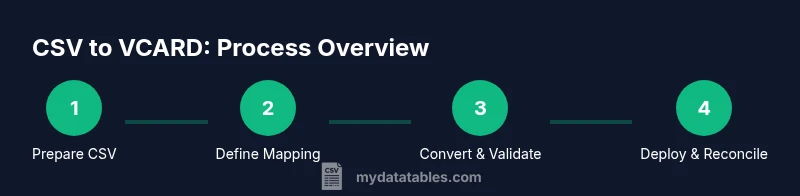
- 1
Prepare the CSV
Open the CSV and verify headers match your planned mapping. Ensure the file uses UTF-8 encoding and that values are clean (no stray separators or quotes that break parsing).
Tip: Include a sample row with every mapped field to test the converter. - 2
Define the mapping
Document how each CSV column maps to VCARD properties (e.g., FirstName+LastName -> FN/N). Decide how to handle multiple phone numbers and addresses.
Tip: Use a configuration file to store mappings for easy reuse. - 3
Create the converter logic
Develop a small script or use a converter tool to read CSV rows and emit VCARD blocks according to your mapping. Include error handling for missing fields.
Tip: Test with a handful of rows first before scaling up. - 4
Run the conversion
Execute the script or tool to generate a .vcf file. Ensure blocks are separated correctly if exporting multiple contacts.
Tip: Keep a log of any rows that fail during conversion for later review. - 5
Validate the result
Import the VCARD file into several target apps to verify display and formatting. Check encoding and field mappings.
Tip: Look for garbled names or missing phone numbers and adjust your mapping or data accordingly. - 6
Refine and repeat
If issues arise, update the mapping rules or data normalization steps, then re-run the conversion on a test batch.
Tip: Document changes to maintain a reproducible process for future CSV sources.
People Also Ask
Do I need a header row in the CSV for conversion?
Yes. A header row helps define the mapping to VCARD fields and reduces guesswork during conversion.
Yes, include headers to clearly map fields.
Can I convert large CSV files efficiently?
Yes, but use streaming or chunking in your script to manage memory usage and improve performance.
Yes, but process in chunks for big files.
Which VCARD version should I target?
Most modern apps support VCARD 4.0; target that version when possible for broad compatibility.
Aim for VCARD 4.0 for wide support.
How should I handle duplicates?
Deduplicate in the CSV prior to conversion or use VCARD UID to merge duplicates after export.
Deduplicate before converting when possible.
What encoding issues should I watch for?
UTF-8 encoding is recommended; ensure characters like accents survive the export/import process.
Use UTF-8 to avoid garbled characters.
Can automation help with CSV to VCARD?
Yes. Scripted pipelines or ETL-like workflows can automate mapping, conversion, and validation.
Yes, automate the workflow for repeat use.
Watch Video
Main Points
- Map CSV headers to VCARD fields consistently
- Use UTF-8 and normalize data before conversion
- Validate VCARDs across multiple apps
- Automate for reproducibility and scale