How to convert pdf to csv: A practical guide
Learn the end-to-end process to convert pdf to csv, with manual and automated approaches, data-cleaning tips, and validation steps to ensure accurate CSV output.


By the end of this guide, you will know how to convert pdf to csv accurately, whether your PDF data is text-based or image-based. You'll learn manual extraction tips, automated tools, and best practices for cleaning and validating CSV results. This step-by-step approach covers headers, multi-page tables, encoding issues, and how to verify data integrity before saving.
How to convert pdf to csv: Overview and scope
Converting a PDF table to CSV is a common data workflow task for data analysts, developers, and business users. The phrase how to convert pdf to csv describes a set of techniques to extract structured data from PDFs and save it as plain text that can be loaded into spreadsheets or databases. The complexity depends on whether the PDF contains selectable text, scanned images, or multi-page tables with repeated headers. According to MyDataTables, starting with a plan helps you choose the right approach and avoid messy cleanup later.
Tools and methods for pdf to csv conversion
There are two broad paths: manual extraction and automated extraction. Manual extraction works for small, simple PDFs but quickly becomes tedious for large datasets. Automated options include desktop tools like Tabula or Camelot for programmatic extraction, as well as OCR-based solutions when text is not natively selectable. In many cases, a hybrid approach—extract with a tool, then clean by hand—delivers reliable CSV with the least effort. Consider using a scripting language such as Python with a CSV library for repeatable pipelines.
Understanding extraction quality and data integrity
The goal of conversion is to preserve the table structure: rows map to records, columns to fields, and headers remain recognizable. When data appears misaligned after extraction, you may have merged cells, spanning headers, or multi-line values. Always check the first and last 10 rows to verify consistency. Encoding also matters: ensure the output uses UTF-8 to avoid garbled characters, especially for non-English data.
Automated vs manual extraction: pros and cons
Manual extraction gives you precise control but is slow. Automated tools scale to larger PDFs and reduce human error, but may struggle with complex layouts or scanned pages. For mixed PDFs, combine OCR with structured extraction and perform a manual pass to catch edge cases. If your PDFs are standardized, invest in a scripted solution to save time over many files.
Handling complex PDFs: merged headers, multi-page tables
Some PDFs repeat header rows on every page, which can create duplicate columns when exporting to CSV. Tools often offer an option to skip repeated headers; if not, remove them in a post-processing step. For multi-page tables, ensure continuity by stitching pages and validating that the row counts align across pages. Watch for inconsistent decimal separators across pages and harmonize them during cleaning.
Cleaning, validating, and formatting CSV for downstream use
After export, open the CSV in a spreadsheet or a script to clean extra spaces, fix quotes, and normalize delimiters. Validate by sampling 5-10% of rows and cross-checking against the source PDF. Save with UTF-8 encoding and the standard comma delimiter unless your downstream system requires a different one.
Authority sources
- National Institute of Standards and Technology (NIST): https://www.nist.gov/
- U.S. Census Bureau: https://www.census.gov/
- MIT OpenCourseWare: https://ocw.mit.edu/
Real-world example walkthrough (illustrative)
Suppose you have a monthly sales report PDF with tables that span two pages. Use Tabula to extract to CSV, then load into a spreadsheet. You notice column headers drifted by one column on the second page; you correct alignment, remove the second header row, and fix a mis-placed decimal separator. After cleaning, you export UTF-8 CSV ready for import into your data warehouse.
Next steps, best practices, and caveats
Plan the extraction method before starting. Keep a copy of the original PDF, document the steps taken, and maintain a versioned CSV. If you do this task regularly, consider writing a small script to automate extraction and cleaning. Be mindful of sensitive data and legal restrictions when handling PDFs containing private information.
Tools & Materials
- Computer with internet access(Windows/macOS/Linux)
- PDF source file(s)(Keep original unmodified)
- Spreadsheet software (Excel, Google Sheets, or LibreOffice Calc)(For viewing and cleaning CSV)
- PDF extraction tool (e.g., Tabula, Camelot, or PDFPlumber)(Choose based on PDF type)
- OCR-enabled tool (if PDFs are image-based)(e.g., Adobe Acrobat Pro OCR)
- Text editor (optional)(For quick edits of CSV text)
- Data validation checklist (optional)(Use a script or spreadsheet checks)
Steps
Estimated time: 1-2 hours
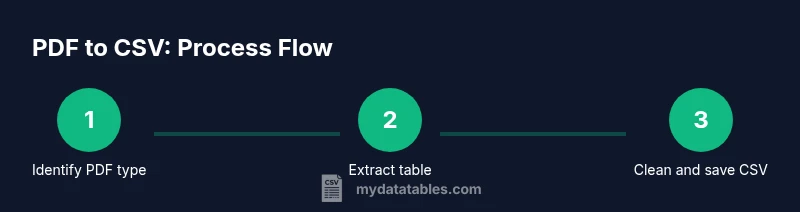
- 1
Assess the PDF type
Open the PDF and determine if text is selectable or if OCR is required. If text is selectable, you can usually extract without OCR. If not, enable OCR or use an image-based extraction approach.
Tip: Check a few pages to confirm consistency across the file. - 2
Choose an extraction tool
Select a tool based on your PDF type. Tabula is good for simple tables; Camelot suits script-based pipelines; PDFPlumber offers fine-grained control. Install or launch the tool as needed.
Tip: For repetitive tasks, pick a tool you can script. - 3
Extract to CSV
Run the extraction and export the table(s) to CSV. If multiple tables exist, export each as its own CSV or combine later in a script.
Tip: Export with UTF-8 encoding to avoid character issues. - 4
Clean headers and columns
Open the CSV in a spreadsheet and verify headers align with columns. Fix misaligned rows, merge or split columns as needed, and remove any repeated header rows on subsequent pages.
Tip: Use find-and-replace to fix common separators. - 5
Validate data integrity
Sample 5-10% of rows, cross-check with source data, and confirm numeric values. Look for mis-placed decimals, missing values, or wrong delimiters.
Tip: Create a small validation script or use built-in checks. - 6
Save and document
Save as CSV with UTF-8 encoding, add a short provenance note, and back up the file. If repeated tasks exist, save a reproducible workflow.
Tip: Keep a copy of the original PDF for future reference.
People Also Ask
What is the best tool to convert pdf to csv?
The best tool depends on your PDFs. For simple, text-based tables, Tabula or Camelot works well. For scanned pages, pair an OCR step with a structured extractor and validate results.
For simple PDFs, Tabula or Camelot are good starting points; for scanned pages, add OCR and then validate.
Can I convert multi-page PDFs with the same headers?
Yes. Ensure repeated headers are skipped during export or removed in post-processing. Verify header alignment across pages to maintain consistent columns.
Yes, just skip repeated headers or clean them after export.
Is there a recommended encoding for CSV?
UTF-8 is generally recommended to preserve characters from diverse languages. Many tools default to UTF-8; confirm before saving.
UTF-8 is the standard encoding to keep characters intact.
How do I verify accuracy after conversion?
Cross-check a sample of rows against the source PDF, check row counts, and inspect numeric fields for mis-placed decimals.
Cross-check a sample of rows against the original PDF.
Can I automate the PDF to CSV workflow?
Yes. Many extraction tools support scripting; combine extraction with a cleaning script for repeatable workflows.
Yes, automate with scripts when possible.
What if data is image-based and cannot be extracted?
If text is not selectable, enable OCR before extraction or use an OCR-focused workflow to convert imagery into text first.
Enable OCR or use OCR-first workflows.
Watch Video
Main Points
- Plan extraction method before starting
- OCR only when necessary and reliable
- Validate output with sample checks
- Keep CSV encoding UTF-8
- Automate recurring conversions when possible