How to Import CSV File in MySQL: Step-by-Step Guide
Learn how to import CSV files into MySQL using LOAD DATA INFILE, Workbench, and phpMyAdmin. This practical guide covers CLI and GUI methods, encoding, troubleshooting, and best practices for reliable data loading.


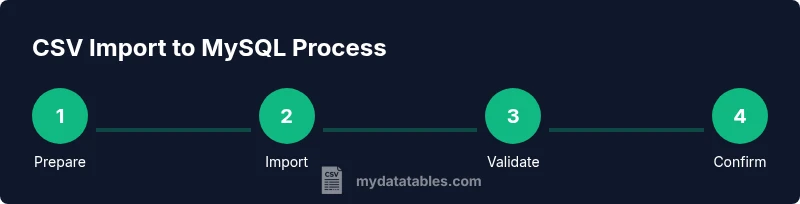
You can import a CSV file into MySQL by using LOAD DATA INFILE for fast bulk loading, or by using MySQL Workbench or phpMyAdmin for GUI-based imports. Ensure the CSV uses a compatible delimiter, matches your table structure, and has proper encodings. This guide covers CLI and GUI options. You will also learn common pitfalls and validation steps.
Why Importing CSV into MySQL Matters
In modern data pipelines, CSV remains a favored format for exchanging data between systems. For data analysts and developers, knowing how to import csv file in mysql is a foundational skill that unlocks fast data loading and reliable analytics. According to MyDataTables, a robust CSV import workflow is essential for data migration and analytics. Whether you’re migrating legacy data or syncing daily exports, a correct import preserves data integrity and minimizes errors. This guide will walk you through CLI and GUI options, highlight encoding and delimiter considerations, and show practical examples you can adapt to your environment. By the end you’ll understand how to plan, execute, and verify imports with confidence.
Prerequisites and Setup
Before beginning, ensure you have access to a MySQL server and the necessary credentials. A user with the FILE privilege (for LOAD DATA INFILE) or appropriate client permissions for LOCAL INFILE is essential. Have your CSV file ready, with a clean header row (or plan to IGNORE the header), and a target table that mirrors the CSV columns. Verify UTF-8 encoding or the encoding your database uses. Install a SQL client or use the MySQL command line, and confirm that the server’s secure_file_priv setting allows reading from the chosen directory. MyDataTables emphasizes checking permissions and encoding early to avoid silent data corruption.
CSV Formats, Encoding and Clean Data
CSV imports are sensitive to encoding, delimiters, and quoting. Common practice is to store data as UTF-8 without a Byte Order Mark (BOM) to minimize surprises. If your CSV uses commas, ensure fields containing commas are enclosed in double quotes and that any embedded quotes are escaped properly. If you have a header row, decide whether to ignore it during import. Decide on delimiter characters (e.g., , for comma-separated, ; for semicolon-separated) and line endings (Unix vs Windows). A clean, well-structured CSV reduces errors and makes validation straightforward. MyDataTables’ guidance highlights aligning CSV structure to target table columns and validating data types before import.
Methods: LOAD DATA INFILE vs. LOAD DATA LOCAL INFILE vs. INSERT
There are multiple approaches to import CSV into MySQL. The most common methods are LOAD DATA INFILE for server-side imports and LOAD DATA LOCAL INFILE for client-side reads, plus INSERT statements for smaller datasets. LOAD DATA INFILE can be extremely fast, especially for large files, but it requires the server to read from a file path the server can access. LOAD DATA LOCAL INFILE reads from the client machine, which can be simpler when file paths aren’t visible to the server. INSERT is more flexible for small datasets or when transforming data on the fly, but it’s slower for large CSVs. We’ll compare usage, performance, and security considerations so you can choose the best fit for your environment.
Step-by-Step: Command Line Import Using LOAD DATA LOCAL INFILE
- Prepare your environment: Open a terminal and ensure the MySQL client is installed and accessible. 2. Verify server settings: Ensure local infile is enabled by starting the client with --local-infile=1 or by setting the local_infile variable in your my.cnf. 3. Create the target table: Ensure the table structure matches the CSV columns, including data types and order. 4. Prepare the import statement: Use LOAD DATA LOCAL INFILE '/path/to/file.csv' INTO TABLE your_table FIELDS TERMINATED BY ',' ENCLOSED BY '"' LINES TERMINATED BY '\n' IGNORE 1 LINES; 5. Run the command: Execute the statement and monitor for errors. 6. Validate loaded data: Run a quick SELECT COUNT(*) and spot-check a few rows. 7. Troubleshoot: If you see column count mismatches or encoding errors, fix the CSV or adjust the table. 8. Clean up: If required, commit the transaction or run a verification query to confirm stability.
Step-by-Step: Import Using MySQL Workbench
- Launch MySQL Workbench and connect to your server. 2. Navigate to Server > Data Import. 3. Choose Import from Self-Contained File or Import from Dump Project Folder depending on your setup. 4. Select the target schema and table, and configure the import options (delimiter, enclosure, ignore lines). 5. Review the preview, then start the import. 6. Verify results in the target table with sample queries. 7. If issues arise, adjust the CSV or table structure and re-run the import.
Common Pitfalls and Troubleshooting
Common pitfalls include mismatched column counts, encoding mismatches, and restricted file access. If you see errors like "Column count doesn't match value" or "The used command is not allowed with this MySQL version," check your CSV against the table schema and ensure the correct import method is chosen. The secure_file_priv setting limits where the server can read files from; if the CSV isn’t in that directory, move it or adjust the setting with server admin approval. For Windows users, be mindful of CRLF line endings and BOM. Always validate results with a small sample and then scale up to full datasets. 8. Final verification: After a successful import, run several data integrity checks (random row sampling, count validation, and column-type verification) to confirm data quality.
Tools & Materials
- MySQL server (or cloud instance)(Ensure version compatibility (5.7+ recommended) and credentials with necessary privileges.)
- CSV file(UTF-8 encoding recommended; remove unsupported BOM if present.)
- MySQL client or GUI tool (Workbench, phpMyAdmin)(For CLI imports, ensure local_infile is enabled if using LOCAL.)
- SQL client configuration(Adjust my.cnf or my.ini if needed to enable local infile and permissions.)
- Sample target table (schema)(Columns should align with CSV columns and data types should be appropriate.)
Steps
Estimated time: 25-40 minutes
- 1
Prepare the environment
Open your terminal or Workbench and confirm you can connect to the MySQL server. Verify the user has necessary privileges (FILE for LOAD DATA INFILE or the ability to use LOCAL INFILE). This step ensures subsequent commands won’t fail due to permissions.
Tip: If using LOCAL INFILE, start the MySQL client with --local-infile=1 to enable client-side file reads. - 2
Create and align the target table
Ensure the destination table structure exactly mirrors the CSV columns in order and type. If the CSV contains a header row, decide whether to IGNORE 1 LINES in your import statement.
Tip: Use a quick DESCRIBE table_name; to confirm column order and types before import. - 3
Prepare the import statement
Craft the LOAD DATA LOCAL INFILE (or INFILE) statement with proper delimiters and qualifiers. Include IGNORE 1 LINES if there is a header row and include ENCLOSED BY if fields are quoted.
Tip: Always test with a small sample file or a subset of columns first. - 4
Run the import
Execute the import statement against the target table. Monitor the client output for errors and note the number of rows affected.
Tip: If the server reports a privilege issue, re-check secure_file_priv and user privileges. - 5
Validate results
Run counts and spot checks on random rows to confirm accuracy and data types. Verify that the NULL handling and default values match expectations.
Tip: Cross-check a few date or numeric fields to catch type mismatches early. - 6
Troubleshoot and finalize
If errors occur, review the error message, adjust the CSV or table schema, and re-run. Once successful, consider adding a validation script for future imports.
Tip: Document the final import script and the CSV schema for reproducibility.
People Also Ask
Do I need to convert my CSV to a specific encoding before importing?
UTF-8 is generally recommended for MySQL imports. If your CSV uses a different encoding, convert it or specify the correct connection encoding. Remove BOM if present to avoid misread characters.
UTF-8 is usually best; convert the file if needed and remove BOM to ensure clean data loading.
Can I import a CSV without a header row?
Yes. Use IGNORE 0 LINES or adjust the column list in your import statement to match the exact CSV layout. If you do have a header, IGNORE 1 LINES is commonly used.
Yes, just adjust the importer to skip or align a header row.
What if I get a column count mismatch error?
That means the number of CSV fields doesn’t match the table columns. Fix the CSV or adjust the table, or use a column list in the LOAD DATA statement to map fields correctly.
Check the column counts and mapping, then retry the import.
Is LOCAL INFILE always required for local CSV files?
Not always. If the CSV is on the server, LOAD DATA INFILE may suffice. If loading from the client machine, you’ll likely need LOCAL INFILE enabled and used appropriately.
You only need LOCAL INFILE if loading from the client side; otherwise INFILE is enough.
Which tool is best for beginners: Workbench or phpMyAdmin?
Workbench offers more control and feedback during imports, while phpMyAdmin is simpler for quick tasks. Choose based on your comfort level and the task’s complexity.
Workbench for control, phpMyAdmin for quick tasks.
Watch Video
Main Points
- Match CSV columns to table schema before import.
- Choose the right import method (LOCAL vs INFILE) based on file location.
- Validate row counts and spot-check data after import.
- Address encoding and delimiters to prevent data corruption.
- Document your import process for repeatability.