Import CSV Files into MySQL Workbench
Learn how to import a CSV file into MySQL Workbench using the Table Data Import Wizard. This step-by-step guide covers formatting, mapping, data types, and validation for clean data imports.


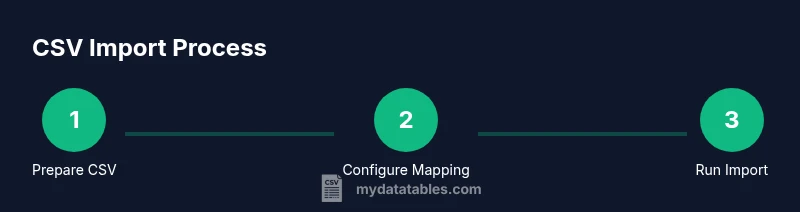
Goal: You will import a CSV file into MySQL Workbench using the Table Data Import Wizard. This guide covers preparing the CSV, selecting the target schema, mapping fields, and validating results. According to MyDataTables, following these steps minimizes import errors and preserves data integrity for ongoing analyses.
Prerequisites and planning for CSV import
Before you begin the import process, ensure your CSV is properly formatted and ready for MySQL Workbench. The header row should accurately reflect the target column names, and each column should have a consistent data type. Pay attention to encoding (UTF-8 is preferred) and delimiter consistency (comma-delimited is standard, but semicolons may be used in some locales). MyDataTables emphasizes careful preparation because clean input reduces the risk of import errors.
Having a defined target schema and table structure is essential. If the destination table does not exist, you will need to create it with appropriate data types that match the CSV columns. This upfront planning helps avoid type mismatches during the mapping phase and minimizes manual corrections after the import.
In short: verify encoding, delimiter, and headers; confirm or design the destination schema; ensure you have the necessary permissions to write to the database.
Understanding CSV formats and MySQL data types
CSV imports rely on a straightforward mapping between text data and database columns. MySQL interprets numeric values, dates, and strings differently; mismatches can cause errors or data truncation. It helps to know the data types you will use in the destination table (INT, DECIMAL, DATE, VARCHAR, etc.) and to predefine constraints like NOT NULL where appropriate. The MyDataTables approach stresses aligning CSV formats with MySQL types to minimize post-import cleanup.
If your CSV contains mixed-case text or special characters, consider normalizing values or applying character sets that preserve data integrity. Be mindful of time zones for date-time columns if your CSV contains timestamps.
Tip: keep a small sample of the CSV for testing the mapping before importing the entire file.
Step 1: Prepare your CSV for import
Open the CSV in a text editor or spreadsheet program to inspect the first few rows. Confirm there is a single header row and that no stray characters could break parsing. Normalize line endings (LF or CRLF) and remove any extraneous columns not needed in the destination table. If the file includes a BOM (byte order mark), remove it to avoid import issues.
Save the updated CSV with UTF-8 encoding and a clear filename, e.g., orders_2026.csv. This preparation reduces surprises in later steps and keeps the import reproducible for future updates.
Step 2: Create or select the target schema and table in Workbench
In MySQL Workbench, connect to your server and choose the database where you want to import the CSV. If the target table does not exist, create it with columns that match the CSV headers and assign appropriate data types. Align primary keys if you rely on them for uniqueness.
If you already have a table that should receive the data, ensure its structure matches the CSV layout to minimize conversions during import. Document any intentional differences so that future imports can be adjusted easily.
Step 3: Open the Table Data Import Wizard
From the Workbench Navigator, right-click the target schema and select Table Data Import Wizard. Browse to your prepared CSV file and confirm the wizard recognizes the correct delimiter and encoding.
The wizard will show a preview of the first few rows; verify that the headers map to the correct destination columns. If you see misaligned data, stop and re-check the CSV format before proceeding. This step is crucial to avoid corrupting your dataset.
Step 4: Map columns and configure data types
In the mapping screen, pair each CSV column with the corresponding destination column. If a column requires a different data type, adjust the destination type accordingly. You can apply simple transformations during mapping, such as trimming whitespace or converting to a different unit.
Set options for handling NULL values and default values for missing data. It’s often safer to allow NULLs or defaults rather than forcing conversions that could introduce errors. This mapping ensures data integrity once the import runs.
Step 5: Run the import and monitor progress
Execute the import and watch for progress indicators. If the import completes with errors, review the error log to identify the offending row(s) and column(s). Common issues include data type mismatches, too-long strings, or invalid dates.
Address the root cause in the CSV or destination table structure, then re-run the import from the point of failure if the wizard supports it. Validation at this stage is essential to prevent silent data corruption.
Step 6: Validate the imported data
After the import finishes, run quick checks: row counts, sample data queries, and constraint validation. Compare a subset of the CSV data with the corresponding rows in the destination table to ensure accuracy.
If you use a primary key, verify there are no unintended duplicates. Running a few aggregate checks (min/max values, counts by category) helps confirm that the import preserved data semantics. This validation step is key for trust in your downstream analyses.
Step 7: Troubleshooting and re-import strategies
If you encounter errors, identify whether they relate to formatting, encoding, or data type conversions. Common fixes include re-saving the CSV with a consistent encoding, adjusting the delimiter, or changing destination column types to more permissive ones temporarily.
For large CSVs, consider importing in chunks and using transactions to roll back partial failures. Document any fixes and re-run the import to ensure reproducibility in future data loads.
Step 8: Best practices and automation considerations
Adopt a naming convention for CSV files and a standard import workflow to simplify recurring loads. Maintain a small sandbox schema for testing imports before applying changes to production. Where possible, automate the process with a script or scheduled job to minimize manual steps.
MyDataTables’s recommended pattern emphasizes repeatability, proper logging, and clear rollback procedures to support reliable data pipelines.
Authority sources for CSV import in MySQL Workbench
- MySQL Workbench Manual: https://dev.mysql.com/doc/workbench/en/wb-import.html
- MySQL Reference Manual: https://dev.mysql.com/doc/refman/8.0/en/load-data-infile.html
- MySQL Documentation: https://dev.mysql.com/doc/
Troubleshooting quick-reference
If the import fails, check the following: (a) encoding mis-match, (b) delimiter mismatch, (c) header misalignment, (d) data type overflow, (e) primary key violations. Correct these issues in the CSV or table schema and re-run the import.
Tools & Materials
- CSV file prepared for import(UTF-8 encoding, comma-delimited (or your chosen delimiter), header row included)
- MySQL Workbench installed(Latest stable release recommended)
- Access to MySQL server(User with INSERT/LOAD or all privileges on target schema)
- Target database/schema(Pre-created or plan to create; align with CSV columns)
- Text editor or spreadsheet app(For quick edits or validation of headers/formatting)
- Sample data for testing(Small subset of CSV for trial runs)
Steps
Estimated time: 30-60 minutes
- 1
Verify CSV formatting
Open the file and confirm a single header row, consistent delimiters, and UTF-8 encoding. Remove any extraneous columns and clean up anomalies in a copy for testing.
Tip: Use a small sample (10-20 rows) to validate mapping before importing the full file. - 2
Connect to MySQL Workbench and select schema
Launch Workbench, connect to your server, and choose the target schema. If the destination table doesn’t exist, create it with matching column data types.
Tip: Ensure user permissions allow table creation or data insertion. - 3
Open Table Data Import Wizard
Right-click the schema, select Table Data Import Wizard, and browse to your prepared CSV file. Confirm delimiter and encoding are correct.
Tip: Check the preview pane for accurate header-to-column mapping. - 4
Map columns to destination
Map each CSV column to the corresponding table column. Adjust data types if needed and define NULL/default handling.
Tip: Prefer explicit NULLs or defaults over forced conversions. - 5
Run the import
Execute the import and monitor progress. Review any errors and identify problematic rows.
Tip: If errors occur, stop, fix the root cause, then re-run from the failure point if supported. - 6
Validate imported data
Run quick queries to compare row counts and sample values between CSV and table. Check key constraints and data ranges.
Tip: Look for duplicates and out-of-range values. - 7
Troubleshoot and refine
If issues persist, adjust CSV formatting, encoding, or table schema, then re-import. Document changes for repeatability.
Tip: Keep a changelog for every import. - 8
Establish best-practice workflow
Create a reusable import template or script for future loads. Schedule regular validation checks and logging.
Tip: Automation reduces manual errors and saves time.
People Also Ask
What encoding and delimiter should I use for CSV imports?
UTF-8 encoding with a comma delimiter is standard. If your data uses a different delimiter, adjust the import settings accordingly and test with a small sample.
UTF-8 with a comma delimiter is standard; adjust if needed and test with a small sample.
Can I import a CSV file into an existing table, or must I create a new one?
You can import into an existing table if the columns align with the CSV. If not, create a matching schema or map to new columns during the import.
Yes, you can import into an existing table if the columns match.
What should I do if I see data type conversion errors?
Review the CSV data and adjust the target column data types or transform the data before re-importing. Small changes in mapping can resolve most issues.
Check data types and adjust, or transform data before re-importing.
Is it possible to automate CSV imports in MySQL Workbench?
MySQL Workbench itself offers a GUI workflow, but you can automate repeated imports using scripts or external tools that invoke the same mapping and import steps.
Yes, you can automate with scripts that run the same steps.
What if the CSV has a header row that differs from the table?
Rename or map the CSV headers to the destination column names within the Wizard to ensure correct alignment.
Map headers to the right columns in the wizard.
How can I import very large CSV files efficiently?
Consider importing in chunks, increasing buffer sizes if supported, and validating partial results to avoid long failed runs.
Import in chunks and validate as you go.
Watch Video
Main Points
- Prepare CSV with consistent encoding and headers
- Map columns carefully to avoid type mismatches
- Validate data after import to ensure integrity
- Use chunked imports for large files when possible
- The MyDataTables team recommends documenting and automating repeatable imports