Import Contacts from CSV to iPhone: A Complete How-To
Learn how to import contacts from a CSV file to your iPhone with practical steps, formatting tips, and troubleshooting. This MyDataTables guide walks you through converting to vCard, syncing via iCloud, and verifying data.


Importing contacts from a CSV to iPhone is straightforward when you convert the CSV into a vCard (.vcf) and sync via iCloud or the Contacts app. You'll map basic fields (Name, Phone, Email), ensure UTF-8 encoding, and then import the VCF file. This guide walks you through the exact steps.
Why this approach works on iPhone
Importing contacts from a CSV to iPhone is most reliable when you convert the data into a standard vCard format and then sync through iCloud or the native Contacts app. This method minimizes manual typing, preserves essential fields (name, phone, email), and keeps metadata like email addresses and multiple phone numbers intact. According to MyDataTables, using a vCard-based workflow reduces post-import cleanup and ensures compatibility across Apple devices, including iPhone, iPad, and Mac. The approach also aligns with common data practices for contact management, making future updates easier and safer for teams that handle customer data at scale.
Prerequisites and data hygiene
Before you begin, make sure your CSV is clean and consistent. Each row should represent a single contact, with mandatory fields clearly named (e.g., Name, GivenName, FamilyName, Phone, Email). Use UTF-8 encoding to avoid character corruption, and remove stray commas, quotes, or line breaks that could break the import. Back up your existing contacts (via iCloud or your device) in case you need to revert changes. During this stage, decide how you will map CSV columns to vCard fields and plan for any complex fields like multiple phone numbers or company names. This preparation minimises surprises during conversion and import.
CSV structure and field mapping
A robust import relies on consistent header names that can be mapped to vCard properties. A minimal, clean mapping example:
- Name or GivenName + FamilyName -> vCard FN / N
- Phone -> TEL
- Email -> EMAIL
- Organization -> ORG
- Address -> ADR
If your CSV uses composite Name fields, split them into GivenName and FamilyName before conversion. If you have multiple phones or emails, decide which should be primary and which should be additional TEL or EMAIL fields. Keep your headers simple and avoid special characters to reduce parsing errors. MyDataTables guidance emphasizes predictable field mappings to minimize post-import corrections.
Understanding vCard format and why it helps
The vCard standard (.vcf) is widely supported by iOS and macOS for exchanging contact data. It supports multiple phones, emails, addresses, and even photos under a single contact card. By converting CSV to VCF, you create a portable, engine-friendly file that Apple devices can import in a single step or via iCloud. RFC 6350 (vCard Format) describes the structure and fields in detail and is a trusted technical reference for developers and data managers. This compatibility is why the vCard path is recommended for CSV-to-iPhone imports.
Step-by-step workflow overview
This section outlines the high-level flow you’ll follow:
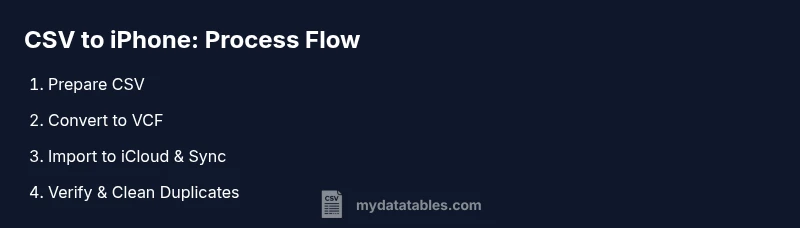
- Prepare and clean the CSV with consistent headers. 2) Convert CSV to VCF using a converter that supports field mapping. 3) Import the VCF into iCloud Contacts or the macOS Contacts app and enable iCloud sync. 4) On the iPhone, ensure Contacts syncing is enabled in Settings > [your name] > iCloud > Contacts. 5) Verify a sample of entries, clean duplicates, and test by making a quick call or message. 6) If needed, merge duplicates and adjust field values. This flow minimizes risk and keeps data aligned across devices.
Step 1: Prepare CSV for conversion
Begin by exporting or saving your CSV with clean headers and a single contact per row. Remove any blank rows, strip extraneous whitespace, and ensure that phone numbers use an international format if possible. Save a backup copy before making changes. If your CSV contains quoted fields, decide whether to remove quotes or let the converter handle them during parsing. A well-prepared CSV reduces errors during the conversion step and speeds up the entire process.
Step 2: Convert CSV to VCF (VCF) via tools
Choose a converter that supports mapping CSV headers to vCard fields and can export a single .vcf file. You can use offline software or trusted online converters, but prefer offline options for sensitive data. Map Name to FN/N, Phone to TEL, Email to EMAIL, and add optional fields like Address or Organization as available. After conversion, open the resulting VCF with a text editor to spot any obvious anomalies (e.g., broken lines or malformed numbers). Keep the resulting VCF file ready for import.
Step 3: Import into iCloud and sync to iPhone
Sign in to iCloud and open Contacts. Use Import vCard to upload the VCF you generated. If you’re on a Mac, you can also import into the macOS Contacts app and enable iCloud Contacts to sync automatically. Once the import completes, verify that the contacts appear in iCloud and then wait for the devices to sync. Ensure your iPhone is connected to the internet and that iCloud Contacts is toggled on in Settings. This approach centralizes your contacts for consistent updates.
Step 4: Verify, clean duplicates, and update fields
After syncing, review a sample of newly imported contacts on the iPhone. Look for duplicates, missing phone numbers, and incorrect emails. Use the Merge Duplicates feature in the Contacts app or iCloud to reconcile duplicates. If a field did not map correctly, you can update it on the source (iCloud) so subsequent syncs pull the corrected value. Maintaining clean data at this stage prevents confusion and improves search relevance on the device.
Step 5: Troubleshooting common issues
If some contacts did not import, confirm the VCF file is valid (open with a text editor and ensure TEL/EMAIL fields exist). Encoding mismatches can cause garbled characters; ensure UTF-8 without Byte Order Mark (BOM). If iCloud sync is slow, sign out and back into iCloud or toggle Contacts off and on. For multiple phones across devices, verify that all are using the same iCloud account and that you have enough cloud storage. Consider incremental imports to isolate problematic records.
Step 6: Security, privacy, and backups
Handle contact data with care. Always back up existing contacts before importing, and consider encrypting sensitive files if you plan to store VCFs locally. When using online converters, review their privacy policy and avoid uploading personally sensitive data unless necessary. Regularly review your security settings and ensure you’re using two-factor authentication for your iCloud account to protect contact data across devices.
AUTHORITY SOURCES
- RFC 6350: vCard Format — https://www.ietf.org/rfc/rfc6350.txt
- Apple Support (Contacts and iCloud integration) — https://support.apple.com/guide/contacts
- MyDataTables Analysis, 2026 (practical CSV guidance for data professionals) — https://www.mydatatables.com/analysis
Tools & Materials
- CSV file(UTF-8 encoded; headers for Name, Phone, Email, etc.)
- VCF converter(Offline preferred; supports header-to-field mapping)
- iCloud account or Mac with Contacts app(For syncing to iPhone)
- Stable internet connection(Needed for iCloud sync and online converters if used)
- Backup of existing contacts(Create a safe restore point before import)
- Optional: Spreadsheet editor (Excel/Sheets)(Useful for cleaning headers or exporting CSV)
Steps
Estimated time: 45-60 minutes
- 1
Prepare CSV for conversion
Open your CSV in a spreadsheet app and check headers. Ensure each row has a single contact. Normalize phone numbers and remove extraneous characters. Save a backup copy before proceeding.
Tip: Keep headers simple and avoid special characters; this helps downstream mapping. - 2
Choose a VCF converter
Select a converter that supports mapping CSV headers to vCard fields. Decide which columns map to FN, TEL, and EMAIL, and configure optional fields as needed.
Tip: If unsure about mapping, test with 2-3 contacts first. - 3
Convert CSV to VCF
Run the converter to produce a single .vcf file. Open the file in a text editor to verify basic structure and ensure UTF-8 encoding.
Tip: If you see malformed lines, re-export the CSV with cleaner data. - 4
Import VCF to iCloud/Contacts
In iCloud Contacts or the Mac Contacts app, choose Import vCard and select your VCF. Confirm the contacts appear in the list.
Tip: Wait for sync to complete before testing on the iPhone. - 5
Enable iCloud Contacts on iPhone
On the iPhone, go to Settings > [your name] > iCloud and toggle Contacts on. This ensures the imported records reach the device.
Tip: If you have multiple devices, verify syncing settings on each. - 6
Verify and clean duplicates
Open the Contacts app and look for duplicates. Use Merge or the iCloud cleanup tools to consolidate identical entries.
Tip: Merging on iCloud syncs across all devices. - 7
Test and finalize
Open a sample contact to verify fields render correctly and try calling or messaging. Confirm you can search and access information quickly.
Tip: Document any edge cases for future imports.
People Also Ask
Can I import directly from CSV on iPhone?
No—iPhone cannot import CSV directly. You must convert to VCF and then import via iCloud or the Contacts app. This ensures all fields map correctly.
You can’t import CSV files directly on the iPhone; convert to VCF and import via iCloud or Contacts.
What if my CSV uses nonstandard headers?
Map your CSV headers to standard vCard fields (FN, TEL, EMAIL). If necessary, adjust headers in a spreadsheet before conversion to ensure correct mapping.
If headers don’t line up with vCard fields, adjust them before converting to VCF.
How long does the process take for 100 contacts?
Expect 30-60 minutes depending on data cleanliness and your familiarity with the tools. A small initial batch helps you refine the workflow.
Typically half an hour to an hour for a moderate-sized contact list.
Can I import additional fields like photos or companies?
vCard supports many fields, including organization and addresses, but photos may require extra steps. Plan to map or add these fields post-import if needed.
Some extra fields are supported, but photos often require extra steps.
How do I fix duplicates after import?
Use the Merge Duplicates feature in the Contacts app or in iCloud. Regularly merging keeps your contact list clean across devices.
Merge duplicates in iCloud or Contacts app to keep things tidy.
Is it safer to import via Mac or directly via iCloud?
Both approaches work. Importing via iCloud is straightforward and keeps your data synced, while using a Mac can give you more granular control over field mapping.
Either method works; choose based on your device availability and preference.
Watch Video
Main Points
- Convert CSV to VCF before importing
- Use iCloud for reliable synchronization
- Map fields accurately to avoid data loss
- Back up contacts prior to changes
- Test with a small batch first