Converting CSV to VCF: A Step-by-Step How-To
Learn how to convert CSV contact data to VCF with an online tool. Step-by-step mapping, encoding tips, privacy guidance, and best practices from MyDataTables.


Definition: An online CSV to VCF converter is a web-based tool that transforms comma-delimited contact data into vCard (.vcf) files. You provide a CSV with headers like name, phone, and email; the tool maps these fields to VCF properties and exports a .vcf file you can import into contact apps. This process works best when headers are consistent, encoding is UTF-8, and you review the mapping before conversion.
What is a CSV to VCF converter and when to use it
A CSV to VCF converter is a tool that translates comma-separated values into vCard entries used by contact managers. CSV is a simple tabular data format with headers, while VCF (vCard) is a structured format for individual contacts. Converting is common when moving data from spreadsheets, CRMs, or contact exports to phone directories, email clients, or CRM systems. An online converter handles the heavy lifting by reading your CSV, mapping headers to VCF properties, and producing one or more .vcf files for import. This saves time and reduces manual data entry errors. According to MyDataTables, many teams rely on online converters to speed up data portability, especially with large contact lists. The MyDataTables team also emphasizes that reliability hinges on clear field mapping and clean CSV input before submission. In practice, you’ll map headers like Name, Phone, and Email to VCF properties such as FN, TEL, and EMAIL, optionally expanding to ADR (address), ORG (organization), and TITLE (job title) as needed.
How CSV headers map to VCF fields and why it matters
Understanding the mapping between CSV headers and VCF properties is the core of a successful conversion. The most common mappings include:
- Name (Name) -> FN (Formatted name) and N (structured name parts)
- Phone (Phone) -> TEL
- Email (Email) -> EMAIL
- Address (Address) -> ADR
- Organization (Company) -> ORG
- Job title (Title) -> TITLE
- Notes (Notes) -> NOTE
If your CSV uses different header names, most converters offer an interface to remap fields. Consistency matters: mismatched headers or extra spaces can lead to missing fields in the resulting VCF. When handling multiple contacts, ensure each row is a distinct contact; blank rows should be removed before conversion. A well-prepared CSV reduces the risk of incomplete or garbled vCard data and improves compatibility across devices and apps.
Privacy, security, and choosing the right tool
Choosing a reputable online converter is essential for data privacy. Before uploading any file, review the service’s privacy policy, data retention practices, and whether the site processes data client-side or on a server. Online converters that perform mapping in your browser preserve data locally, while server-side tools may require data transmission over the internet. MyDataTables Analysis, 2026, suggests prioritizing tools with transparent handling of sensitive information and the ability to delete uploaded files after processing. If you’re dealing with contact lists containing PII (PII), consider testing with a small, non-sensitive sample first and use a tool that offers encryption and robust access controls. Finally, always verify you’re using a converter that supports UTF-8 to avoid garbled characters in names, addresses, or emails across languages.
Preparing your CSV for conversion: data hygiene matters
Before you start, cleanse your CSV to maximize accuracy. Remove duplicate rows, normalize phone numbers to international format (including country code when possible), and standardize date and address fields. Ensure the first row contains headers that clearly describe each column, and avoid special characters in headers that some converters misinterpret. Confirm the file encoding is UTF-8 without a Byte Order Mark (BOM) to prevent visibility issues in certain clients. If your CSV includes multiline notes or addresses, ensure quotes properly enclose those fields so the converter reads them as a single value. A small, clean sample file is often worth testing with before you commit to a full conversion.
Tools & Materials
- Computer or mobile device with internet access(Any modern browser (Chrome, Edge, Firefox, Safari))
- CSV file with headers(Headers like Name, Phone, Email; UTF-8 encoding preferred)
- Online CSV to VCF converter(Choose reputable services; review privacy policy)
- Text editor (optional)(Use for quick edits or mapping notes before upload)
- Sample VCF viewer (optional)(Verify the output by opening the .vcf file)
Steps
Estimated time: 20-40 minutes
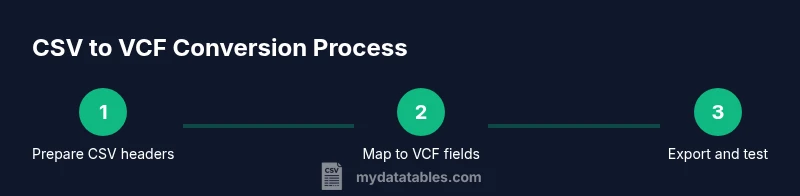
- 1
Prepare your CSV
Open your CSV in a spreadsheet app and verify headers are clear and consistent (e.g., Name, Phone, Email, Address). Remove duplicates and ensure UTF-8 encoding. Create a small test file to validate the mapping before processing the full dataset.
Tip: Use a test subset (5-10 rows) to confirm mappings work as expected before running a full conversion. - 2
Choose a trustworthy converter
Scan privacy policies and user reviews to pick a converter with strong data handling practices. Prefer tools that process data locally in your browser to avoid sending data to servers when possible.
Tip: If privacy is critical, select a service that offers client-side processing and data deletion confirmation. - 3
Upload your CSV
Load the CSV file into the converter. Check that the tool recognizes the header row and displays a clear field-mapping interface.
Tip: Ensure encoding is UTF-8 to prevent garbled characters in names or notes. - 4
Map CSV fields to VCF fields
Match common fields to VCF properties: Name to FN/N, Phone to TEL, Email to EMAIL, Address to ADR, Organization to ORG, Title to TITLE. Add NOTES if your CSV has notes.
Tip: Keep a documented mapping for future re-runs or audits. - 5
Validate the mapping on a sample
Review a few converted entries in the tool's preview or in a downloaded sample VCF to ensure all required fields show up correctly.
Tip: Look for blank TEL or EMAIL fields that could indicate mapping gaps. - 6
Run the conversion
Execute the conversion and download the resulting .vcf file. If multiple contacts exist, confirm a single VCF with multiple entries or multiple VCFs as your tool supports.
Tip: If the tool offers batch options, prefer a single consolidated VCF for easier import. - 7
Test import into a target app
Import the VCF into your contact app or CRM to verify fields render correctly and that no duplicates appear.
Tip: Start with a small test group to avoid mass duplicates. - 8
Audit and save a backup
Review the final VCF file for consistency and keep a backup of the original CSV and the generated VCF in a secure location.
Tip: Document the version and date of conversion for traceability.
People Also Ask
What is a VCF file and why convert to it?
A VCF file (vCard) stores contact details in a standardized format that can be imported by most contact apps. Converting from CSV enables you to migrate large contact lists efficiently.
A VCF is a standard contact file that most apps can import, so converting from CSV helps you move a lot of contacts quickly.
Can every CSV be converted to VCF?
Most CSVs can be converted, but you may need to adjust headers to map to VCF fields. Complex fields like multiline notes require careful quoting.
Most CSVs can be converted, but you may need to adjust headers and handle multiline notes properly.
How should I map common fields to VCF?
Map Name to FN/N, Phone to TEL, Email to EMAIL, Address to ADR, Organization to ORG, and Job Title to TITLE. Add NOTES if your data includes notes.
Map the common fields like name, phone, and email to the corresponding VCF properties; add address and organization if available.
Is it safe to upload data to online converters?
Privacy depends on the service. Prefer tools that process data locally or clearly state data handling and deletion after conversion. Avoid sensitive datasets on insecure networks.
Be cautious with sensitive data; choose trusted services and consider client-side processing when possible.
How can I verify the converted VCF?
Open the downloaded VCF in a viewer or import into a test contact app to ensure fields render correctly and there are no duplicates.
Open the file in a contact app to check all fields show up correctly and there are no duplicates.
What common issues occur in conversion?
Issues often involve encoding mismatches, missing mandatory fields (TEL/EMAIL), or misnamed headers that prevent successful mapping.
Encoding problems or missing required fields are the usual culprits in CSV-to-VCF conversions.
Watch Video
Main Points
- Map headers to VCF fields accurately
- Verify encoding to prevent garbled text
- Test with a small sample before full conversion
- Choose reputable tools and protect privacy