CSV vs Excel: A Thorough Comparison for Data Professionals
Explore whether csv and excel are same in practice, with a detailed comparison of structure, capabilities, and best-use scenarios for data professionals. Clear guidance for analysts, developers, and business users.


Misconception: Are CSV and Excel the Same?
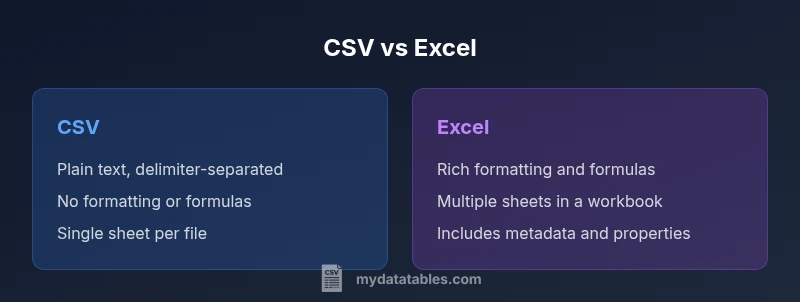
A common misconception persists in conversations and on quick-reference guides: csv and excel are same. In reality, the two formats are designed for different purposes. CSV stands for comma-separated values and functions as a plain-text, delimiter-based representation of tabular data. Excel, by contrast, is a feature-rich workbook that stores data across multiple worksheets, with formatting, cell metadata, formulas, charts, and macros. Because of these differences, simply changing a file extension does not convert a dataset into an Excel workbook, and importing CSV data into Excel can reveal missing formatting, data types, or validation rules. This block sets the stage for a precise comparison, addressing common misconceptions and framing how data professionals should think about compatibility, interoperability, and long-term maintainability. The MyDataTables team notes that clarifying expectations early saves time in ETL pipelines and reporting workflows.
Core Differences in Structure and Encoding
CSV and Excel differ fundamentally in how they store data. CSV is a plain-text format where each line represents a row and fields are separated by a delimiter (commonly a comma, but tabs or semicolons are also used). There is no embedded schema, no metadata about data types, and no support for multiple sheets or rich formatting. UTF-8 encoding is typical, but regional settings can affect delimiters and quoting.
Excel uses the .xlsx (or older .xls) format, which is a structured, zipped collection of XML files. It supports multiple worksheets, rich formatting, data types, named ranges, named formulas, charts, images, and macros. The file contains metadata and properties describing the workbook, and it can encode complex relationships between cells and sheets. In practice, this means a single Excel file can represent a broader data story with layout and computation, while CSV remains a portable data dump designed for interchange.
Data Types, Validation, and Schema
CSV stores data as text and relies on downstream consumers to interpret values. There is no enforced data typing, no built-in validation rules, and no explicit schema within the file. This makes CSV highly portable but vulnerable to misinterpretation if the consumer assumes the wrong types or formats (dates, numbers, booleans).
Excel provides explicit data types for cells, supports data validation rules, and can enforce constraints. It also offers table structures with constraints, data types, and formats that help maintain data integrity during editing. When exporting from Excel to CSV, these richer properties are typically lost, which is a critical consideration for data pipelines and reproducibility.
Multi-Sheet Capability, Formulas, and Charts
One of Excel’s strongest advantages is its support for multiple sheets within a single file. This enables complex data models, dimensional analysis, and consolidated dashboards. Excel also supports formulas, functions, conditional formatting, pivot tables, and charts, enabling users to derive insights directly within the workbook.
CSV has no concept of sheets, formulas, or charts. A CSV file contains only rows and columns; any computed results or formatting have to be recreated in the consuming environment. This fundamental difference governs how teams structure reports and how they share data across tools. When the goal is quick data transfer without interactivity, CSV excels; for interactive analysis, Excel wins.
Interoperability and Tooling
CSV is universally readable by virtually every data tool, programming language, and spreadsheet program. It is the lingua franca for data exchange because its simplicity minimizes parsing errors and dependency on vendor-specific features. However, variations in delimiters, quoting rules, and encoding can cause compatibility issues if not standardized (for example, locales that use semicolons as delimiters).
Excel files require compatible software to exploit their features fully. While Excel itself is ubiquitous in many organizations, other tools may struggle with advanced Excel constructs, macros, or pivot tables when used without compatible libraries. When interoperability is paramount, CSV tends to be the safer default, with Excel used in environments that support rich analysis and presentation.
When to Use CSV: Portability and Automation
CSV shines when portability, simplicity, and automation are the primary needs. For data pipelines, batch exports, and systems that require a plain-text interchange format, CSV minimizes parsing complexity and avoids hidden formatting issues. Text-based diffs in version control systems help track changes across revisions, which is valuable in audit trails and collaborative workflows.
Automation scripts, ETL jobs, and data ingestion tasks often prefer CSV due to its predictable structure and small footprint. If a dataset will be loaded into many different systems or languages, CSV reduces the risk of compatibility problems caused by proprietary features. In this context csv and excel are not the same, but the CSV format often acts as the stable backbone of data flows.
When to Use Excel: Rich Analysis and Collaboration
Excel is the go-to choice when you need rich formatting, built-in calculations, and collaboration features. Its support for formulas, data validation, pivot tables, and charts makes it ideal for analysts who explore data, build dashboards, or present findings directly from the workbook. Excel’s capability to retain layout and metadata is a boon for reporting, planning, and ad-hoc analysis.
For teams that require reproducible analyses with transparent steps, Excel provides a user-friendly environment to annotate data, apply business rules, and share a single source of truth. However, this richness comes at the cost of portability and potential for drift when files are edited by multiple tools. In short, use Excel for deep analysis and collaborative work, while relying on CSV for clean data exchange and automation-ready datasets.
Practical Guidance and Best Practices
When working with CSV and Excel in tandem, define clear roles for each format. Use CSV for data export, ingestion, and automation, and keep Excel for analysis, reporting, and stakeholder-facing documents. Establish conventions for encoding (UTF-8), delimiter choice, and quoting rules to minimize compatibility issues. Always validate data after importing CSV into Excel and consider converting back to CSV after transforming data in Excel to preserve portability.
Document any assumptions about data types, date formats, and locale-specific conventions. Keep a separate metadata file or a data dictionary when sharing CSVs across teams to prevent misinterpretation. Finally, test end-to-end pipelines by round-tripping data between formats to detect loss of information or unintended changes in formatting.
Handling Large Datasets and Performance
CSV generally provides faster parsing on large datasets because of its minimal structure and lack of metadata. When loading huge CSV files, performance is often constrained by the parsing library and the hardware rather than the format itself. In contrast, Excel workbooks with large datasets can become unwieldy; the presence of formulas, formatting, and multiple sheets can slow open/save operations and complicate automated processing.
Consider chunked processing, streaming parsers, or database storage for very large datasets. If your workflow must accommodate millions of rows, using CSV as an initial dump and then loading into a database or data warehouse can be more scalable than handling a colossal Excel workbook in memory.
Common Pitfalls and How to Avoid Them
A frequent mistake is assuming that saving as CSV preserves all Excel features. When exporting, formulas become values, formatting is lost, and multi-sheet relationships are not represented. Ensure you have a mapping plan for formulas, data types, and locale rules when converting between formats. Another pitfall is neglecting encoding and delimiter choices, which can corrupt data when shared across environments.
To avoid these issues, adopt a consistent conversion strategy: define the target encoding, standardize delimiters, and validate the resulting files with sample data. Keep a data dictionary and provide guidance on how to interpret each column, especially for numeric or date fields. Finally, build automated tests to verify that round-tripping data between CSV and Excel preserves essential information.
Real-World Scenarios: Pipelines in Data Teams
In a typical data pipeline, CSV is used for extract-and-load (ETL) steps where data is pulled from sources, transformed, and written to a portable format. Excel is used by analysts and business users to explore data, perform scenario planning, and produce reports for stakeholders. Data engineers may load CSV into a data warehouse, then provide Excel workbooks with dashboards for management oversight. The key is to separate concerns: use CSV for data transport and integrity, and Excel for analysis and communication where complex formatting and calculations matter.
Practical Checklist for Format Decisions
- Define the primary goal: portability vs. rich analysis.
- Consider the downstream tools and environments that will consume the data.
- Decide on encoding and delimiter standards and document them.
- Plan for data types, validation, and metadata in the chosen format.
- Anticipate future needs such as multi-sheet structures or macros.
- Establish a reproducible conversion process and include data dictionaries.