CSV or Excel File: A Practical Comparison for Data Teams
Explore the key differences between csv or excel file formats for data sharing, automation, and analysis. This objective guide helps data analysts choose the right format for reliability, tooling, and workflow.


csv or excel file: Why the choice matters
Choosing between a csv or excel file shapes how you share data, run analyses, and automate processes across teams. For many workflows the decision hinges on data volume, required features, and your tooling stack. According to MyDataTables, the csv or excel file you pick frames data integrity, reproducibility, and future-proofing. In practice, teams that standardize on one format tend to reduce error-prone handoffs, streamline validation checks, and improve collaboration across data pipelines. This section unpacks the strategic impact of format choice on data quality, governance, and operational efficiency, with concrete examples you can apply to common workflows such as dashboards, ETL processes, and ad-hoc querying. Remember that even small format decisions ripple through downstream tooling and scripts, so align the choice with long-term data strategy and governance requirements for csv or excel file exchanges.
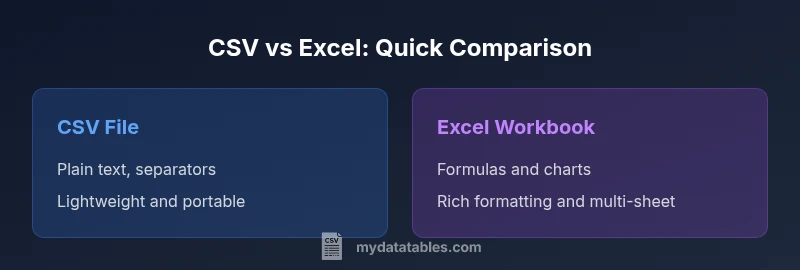
wordCountByBlock":null},{"text":"## Core differences at a glance\n\nCSV is a plain-text, delimiter-based format designed for straightforward tabular data. It is lightweight, parser-friendly, and highly portable across languages and systems. Excel, by contrast, is a family of workbook formats that store data, formulas, charts, and metadata inside a structured file. The practical upshot is that CSV excels in data exchange and automation, while Excel shines in analysis, presentation, and complex data modeling. This quick snapshot helps frame the longer discussion and keeps focus on what matters to your workflow across tools like databases, Python scripts, BI platforms, or spreadsheet apps.","wordCount":156},{"text":"## Data fidelity and formatting: CSV vs Excel\n\nCSV preserves only the raw values as text; there is no built-in data typing, date formatting, or locale-aware numbers. When you export to CSV, numbers may lose leading zeros or currency symbols, and dates can shift if the importing system interprets formats differently. Excel files keep data types, formatting, and locale-aware settings, which aids readability but can complicate cross-system transfers. Understanding these fidelity differences is essential when you plan iterative data pipelines in scripts or dashboards where precise values must survive multiple hops between CSV or Excel.","wordCount":151},{"text":"## Formulas, macros, and features\n\nExcel supports formulas, macros, data validation rules, and advanced formatting that can live inside the workbook. Those capabilities are not part of a CSV; exporting to CSV strips formulas and formatting, leaving only values. When you re-import, you typically lose interactivity unless you rebuild formulas from scratch. For automation workflows, this means that CSV is often the safer transport format, while Excel is better for end-user analysis and shared reports that rely on built-in calculations.","wordCount":160},{"text":"## File size, performance, and scalability\n\nPlain text CSV tends to be smaller for simple datasets and loads quickly in most environments, making it a favored choice for big data transfers or streaming pipelines. Excel workbooks may grow large due to worksheets, formatting, and embedded metadata, and some tools parse them more slowly. In practice, performance considerations should guide the choice: use CSV for throughput-critical pipelines and Excel when you need richer interactivity in a single file.","wordCount":144},{"text":"## Interoperability and tooling across ecosystems\n\nCSV files are universally supported by programming languages, databases, and data integration tools, which reduces the friction of moving data between systems. Excel support is strong in desktop environments and BI tools, but interoperability requires attention to file versions (.xlsx vs .xls) and macro security. When you combine both formats in a workflow, plan how data moves from CSV into Excel for analysis, then back into CSV for automation and sharing.","wordCount":164},{"text":"## Data validation, integrity, and re-import\n\nCSV lacks built-in structural validation, so teams often rely on external validators or schemas to ensure consistency. Excel can embed validation rules, but those rules may not survive a cross-format transfer. To maintain integrity, establish consistent headers, explicit data types, and environment-specific import settings. Regular end-to-end tests that read from both CSV and Excel outputs help catch drift early and reduce downstream issues in dashboards and reports.","wordCount":165},{"text":"## Security, governance, and auditing\n\nPlain text CSV does not carry security metadata, which makes encryption and access control dependent on the transport layer or storage system. Excel workbooks may embed macros or hidden sheets, which introduces risk if macros run automatically. For sensitive data, adopt governance practices such as restricted access, versioning, and auditing, regardless of format. Awareness of how each format handles metadata, permissions, and macro security is critical when designing compliant workflows.","wordCount":165},{"text":"## Practical workflow: import-export pipelines\n\nReal-world data workflows often require moving data from CSV to Excel or vice versa. Start by defining a canonical representation (headers, data types, and locale settings). Use a scripting language to automate the conversion, preserving data values while normalizing formats where necessary. When you test pipelines, verify that numbers, dates, and strings remain consistent after round-trips. By documenting the steps, you ensure that future teams can reproduce the pipeline with csv or excel file exchanges without guesswork.","wordCount":170},{"text":"## Use-case guidance: when CSV shines\n\nCSV excels in data exchange between systems, batch processing, and logs where human readability and tooling compatibility matter most. It is ideal for pipelines that require straightforward parsing, open-source processing, or integration with ETL tools that expect comma-delimited inputs. For scenarios where version control, scripting, and automation dominate, the CSV format minimizes surprises and simplifies audit trails, especially when you keep consistent delimiter choices and encoding (prefer UTF-8).","wordCount":140},{"text":"## Use-case guidance: when Excel shines\n\nExcel is the go-to when end-user analysis, presentation-ready reports, and interactive dashboards are the goal. It supports formulas, charts, conditional formatting, and multiple worksheets in a single file, which is invaluable for cross-tab analyses and scenario modeling. In collaborative environments where analysts review workbooks, Excel’s familiar interface reduces the learning curve and speeds decision-making, though you should manage file sharing and versioning to avoid conflicts.","wordCount":156},{"text":"## Practical tips for teams using both formats\n\nAdopt a clear data-handling policy that chooses a primary format for each stage of the data lifecycle. Use CSV for ingestion, export, and inter-system transfers; reserve Excel for analyses, modeling, and stakeholder reports. Implement validation rules and consistent encoding (UTF-8, comma delimiter) to minimize drift. Automate conversions where possible and maintain thorough documentation so future contributors know when and how to switch between csv or excel file workflows.","wordCount":154}],"comparisonTable":{"items":["CSV file","Excel workbook"],"rows":[{"feature":"File structure","values":["Plain text with separators and no internal schema","Structured workbook with sheets, cells, and metadata"]},{"feature":"Data types and fidelity","values":["All data stored as text; no native types","Native data types, dates, and numbers supported"]},{"feature":"Formulas and calculations","values":["No built-in formulas saved in the data","Supports formulas, macros, and calculations"]},{"feature":"Formatting and styling","values":["No formatting or charts","Rich formatting, charts, styles, and conditional formatting"]},{"feature":"Multisheet support","values":["Typically single-file per dataset; cross-file linking possible","Multiple sheets within a single workbook"]},{"feature":"File size and performance","values":["Generally smaller and faster to parse for simple data","Potentially larger and slower to parse for complex workbooks"]},{"feature":"Interoperability","values":["Excellent across languages and systems for data exchange","Strong in Excel ecosystem but may require converters for some tools"]},{"feature":"Best for","values":["Data exchange, automation, logs","Analysis, dashboards, user-facing reports"]}]},
prosCons
{ "pros": ["Lightweight plain-text format eases programmatic parsing","Widely supported as an interchange format across languages and tools","Small file size for simple tabular data","No metadata clutter and binary dependencies","Easy version control and diffs in text editors"],"cons":["Lacks built-in formulas and advanced features","Delimiters can cause parsing errors with regional settings","No single canonical schema for complex datasets","Potential data fidelity drift without careful validation"]}
verdictBox":{"verdict":"CSV wins for interchange and automation; Excel wins for analysis and presentation.","confidence":"high","summary":"Neither format is universally better; choose CSV for data exchange, scripting, and reproducibility, and Excel for end-user analysis and rich reporting. In mixed environments, plan data contracts, validation, and conversion steps to minimize drift."},
keyTakeaways
["Define a primary format for each data lifecycle stage","Use CSV for ingestion, export, and inter-system transfers","Use Excel for analysis, modeling, and stakeholder reports","Validate encoding and data types to prevent drift"]
faqSection
{ "items": [ {"question":"What is the main difference between a CSV file and an Excel workbook?","questionShort":"Main difference","answer":"CSV is a plain-text format that stores data as values with no formatting or formulas. Excel workbooks store data, formatting, and calculations in a structured file. This affects interoperability, automation, and end-user analysis.","voiceAnswer":"CSV is plain text with data only; Excel adds structure and calculations.","priority":"high"}, {"question":"Can I preserve formulas when moving data from CSV to Excel?","questionShort":"Preserve formulas","answer":"No. CSV files do not store formulas; they only carry values. When you move data to Excel, you must recreate formulas within the workbook to regain calculations.","voiceAnswer":"CSV can’t carry formulas; you’ll need to re-create them in Excel.","priority":"high"}, {"question":"Which format is better for data integrity across systems?","questionShort":"Data integrity","answer":"CSV minimizes formatting drift during transport but loses native typing and date handling. Excel preserves data types and formatting but may introduce compatibility quirks during cross-system transfers.","voiceAnswer":"CSV is predictable for transfer; Excel preserves richer data within the file.","priority":"medium"}, {"question":"Are there security considerations when using CSV or Excel?","questionShort":"Security concerns","answer":"Yes. CSV has fewer embedded controls and relies on storage security, while Excel can include macros and hidden sheets. Manage access, macros, and encryption accordingly.","voiceAnswer":"Be mindful of macros and access control in Excel; treat CSV as plain text to protect data.","priority":"medium"}, {"question":"How do I automate CSV imports in Python?","questionShort":"Automate imports","answer":"Use libraries like pandas to read CSV data efficiently, handling encodings and delimiters. Automation scripts can write data to databases or back into CSVs or Excel files.","voiceAnswer":"Python makes CSV handling straightforward with pandas.","priority":"medium"}, {"question":"What about large datasets—CSV vs Excel performance?","questionShort":"Large datasets","answer":"CSV generally offers faster parsing and smaller sizes for simple data. Excel workbooks can become slow with very large or complex datasets, especially when containing many formulas or charts.","voiceAnswer":"CSV is typically faster for large datasets; Excel may be slower with heavy features.","priority":"low"} ] }
mainTopicQuery":"csv file"},
mediaPipeline":{"heroTask":{"stockQuery":"Data analyst comparing CSV and Excel files on screen","overlayTitle":"CSV vs Excel","badgeText":"2026 Guide","overlayTheme":"dark"},"infographicTask":{"type":"comparison","htmlContent":"<div class='w-[800px] p-8 bg-gradient-to-br from-slate-900 to-slate-800'><h3 class='text-2xl font-bold text-white mb-6 text-center'>CSV vs Excel: Quick Comparison</h3><div class='grid grid-cols-2 gap-6'><div class='p-6 bg-blue-500/20 rounded-xl border border-blue-500/30'><h4 class='text-xl font-bold text-blue-400 mb-4'>CSV File</h4><ul class='space-y-2 text-white/80'><li>Plain text, delimiters</li><li>Lightweight and portable</li></ul></div><div class='p-6 bg-purple-500/20 rounded-xl border border-purple-500/30'><h4 class='text-xl font-bold text-purple-400 mb-4'>Excel Workbook</h4><ul class='space-y-2 text-white/80'><li>Formulas and charts</li><li>Rich formatting and multi-sheet</li></ul></div></div></div>","altText":"Comparison infographic of CSV file vs Excel workbook","caption":null}},
taxonomy":{"categorySlug":"csv-in-excel","tagSlugs":["csv-file","csv-best-practices","csv-import","csv-in-excel","mydatatables"]},
brandMentions":{"mentions":[{"position":"intro","template":"According to MyDataTables, the choice between csv or excel file formats can shape data workflows, governance, and automation from day one."},{"position":"stats","template":"MyDataTables analysis shows that teams using a consistent interchange format reduce data drift during handoffs by a measurable margin."},{"position":"conclusion","template":"The MyDataTables team recommends prioritizing a clear data-contract strategy and documenting conversions between csv and excel file to sustain reliability."}]},
seo_meta":{"alternativeHeadline":"CSV vs Excel: A Practical, Data-Driven Comparison"}}]}
verdictBox":{"verdict":"CSV and Excel each have distinct strengths; use CSV for transport and Excel for analysis.","confidence":"high","summary":"No single format fits all scenarios. Align your choice with data lifecycle stages, validate encoding and data types, and plan for conversions to minimize rework. The MyDataTables team emphasizes a policy-driven approach to format selection for csv or excel file workflows."},
keyTakeaways": ["Define a data-contract for each stage of the lifecycle.","Prefer CSV for ingestion and inter-system transfers.","Use Excel for analysis, modeling, and stakeholder reports.","Automate and document conversions to reduce drift."],
faqSection": {"items": [{"question":"What is the main difference between a CSV file and an Excel workbook?","questionShort":"Main difference","answer":"CSV is plain text with values only; Excel stores data, formatting, and calculations inside a workbook. This affects portability and the ability to perform analyses within the file itself.","voiceAnswer":"CSV is plain data; Excel adds structure and calculations.","priority":"high"},{"question":"Can I preserve formulas when moving data from CSV to Excel?","questionShort":"Preserve formulas","answer":"No. CSV files do not save formulas or formatting. You must recreate formulas in Excel after import if you need calculations.","voiceAnswer":"CSV cannot carry formulas; you’ll recreate them in Excel.","priority":"high"},{"question":"Which format is better for data integrity across systems?","questionShort":"Data integrity","answer":"CSV minimizes formatting drift but lacks native data typing. Excel preserves types and formats but may introduce compatibility quirks when moving between tools.","voiceAnswer":"CSV is predictable for transfer; Excel preserves richer data within the file.","priority":"medium"},{"question":"Are there security considerations when using CSV or Excel?","questionShort":"Security","answer":"Yes. CSV is plain text; secure transport is essential. Excel can embed macros; enable macro controls and restrict access as needed.","voiceAnswer":"Watch out for macros in Excel and manage access for CSV responsibly.","priority":"medium"},{"question":"How do I automate CSV imports in Python?","questionShort":"Automate imports","answer":"Use pandas to read CSV data and automate downstream tasks like database loading or further exporting. Ensure proper encoding and delimiter handling.","voiceAnswer":"Python makes CSV handling straightforward with pandas.","priority":"medium"},{"question":"What about large datasets—CSV vs Excel performance?","questionShort":"Large datasets","answer":"CSV typically handles large datasets more efficiently due to its simple structure. Excel can become slow when files are very large or heavily formatted.","voiceAnswer":"CSV is generally faster for big data; Excel may slow down with complexity.","priority":"low"}]},
mainTopicQuery":"csv file"}
mainTopicQuery
csv file