CSV to JSON Convert: A Practical Step-by-Step Guide
Learn how to convert CSV to JSON with practical methods using Python, Excel, and online tools. Includes structure choices, encoding, validation, and handling edge cases for reliable data interchange.


You will learn how to convert CSV to JSON, including selecting the right JSON structure, mapping headers to keys, and handling data types and large files. This guide walks through Python scripts, Excel-based methods, and reliable online tools to fit the needs of data analysts, developers, and business users. It also covers validation and troubleshooting tips.
Why CSV to JSON Convert Matters
In data workflows, converting CSV to JSON unlocks seamless data interchange between systems, APIs, and dashboards. JSON is a hierarchical, human-readable format that supports nested objects and arrays, which makes it ideal for representing structured tabular data after transformation. For teams using CSV as input, a clean CSV to JSON convert process reduces manual data wrangling, minimizes errors, and accelerates analytics pipelines. According to MyDataTables, CSV to JSON conversion is a foundational skill for data analysts, developers, and business users who want robust data integration. This guide helps you choose the right JSON structure, preserve data integrity, and validate results across common tools and languages.
Key takeaways here: understand the data you’re exporting, decide on JSON topology early, and test output with real-world samples. You’ll also learn how to adapt to large datasets and streaming scenarios while maintaining readability and performance.
Common JSON Structures for CSV Data
When you convert CSV to JSON, you have several structure options, and the choice affects how downstream systems parse, store, and query the data. The most common forms are:
- Array of objects: Each CSV row becomes an object with header values as keys. This is intuitive for most programming languages and APIs.
- JSON Lines (newline-delimited JSON): Each row is a standalone JSON object on its own line. This is ideal for streaming large files or incremental processing because it enables line-by-line parsing without loading the entire file into memory.
- A single root object with an array: Useful when you want a named collection like {"records": [ ... ]}. This can add a predictable schema, especially for APIs expecting a root key.
Your decision should reflect downstream consumption, required schema, and performance considerations. For instance, JSON Lines suits massive datasets, while an array of objects is friendlier for most client-side JavaScript apps and dashboards. MyDataTables recommends starting with an array of objects for clarity, then migrating to JSON Lines if you face memory constraints.
- Practical example: Converting to an array of objects produces a JSON like [{"Name": "Ada", "Email": "[email protected]"}, {"Name": "Ben", "Email": "[email protected]"}]. This structure is easy to navigate in code and matches typical REST API payloads.
Encoding, Delimiters, and Headers to Watch
CSV comes with variations: delimiters (comma, semicolon, tab), quote handling, and character encoding (UTF-8 is standard). A robust CSV to JSON convert path starts by validating the file’s encoding and ensuring the first row contains headers. If headers include spaces or special characters, you should normalize them to valid JSON keys (e.g., replace spaces with underscores, trim whitespace). When parsing, treat empty fields as null values to preserve data shape rather than empty strings, which can misrepresent missing data. If your CSV uses a delimiter other than a comma, you must specify it explicitly in your converter to avoid mis-splitting fields.
- Tips: Always verify the header row matches the data columns. Normalize header names to consistent naming conventions before conversion. If the source uses BOM or unusual encodings, normalize to UTF-8 before parsing.
Step-by-Step: Convert Using Python
Python is a versatile choice for CSV to JSON conversion, thanks to its built-in csv module and the powerful json module. The following approach creates an array of objects from a typical CSV with a header row. This section includes a minimal script and explains how to adapt it for large files or JSON Lines output.
import csv
import json

csv_path = 'data.csv'
json_path = 'data.json'

def csv_to_json(csv_file, json_file, delimiter=',', as_json_lines=False):
    with open(csv_file, 'r', encoding='utf-8', newline='') as f:
        reader = csv.DictReader(f, delimiter=delimiter)
        if as_json_lines:
            with open(json_file, 'w', encoding='utf-8') as jf:
                for row in reader:
                    jf.write(json.dumps(row) + '\n')
        else:
            rows = list(reader)
            with open(json_file, 'w', encoding='utf-8') as jf:
                json.dump(rows, jf, ensure_ascii=False, indent=2)

# Example usage:
csv_to_json(csv_path, json_path, delimiter=',', as_json_lines=False)- What this does: DictReader maps each header to a key, producing an object per row. You can switch to JSON Lines by passing as_json_lines=True.
- Why this approach: It’s simple, readable, and scales well for typical datasets. If the CSV is very large, consider streaming or chunked processing to avoid high memory usage.
Step-by-Step: Convert Using Excel and Power Query
If you prefer a GUI approach, Excel with Power Query can import CSV data and export JSON using a scripting bridge or an external add-in. The method is approachable for business users who don’t want to write code. Steps: import the CSV into Power Query, transform columns to reliable JSON keys, and use a custom function to export the data as JSON. You can generate a JSON array from the resulting table, then save it as a .json file.
- Why this helps: It leverages familiar tools (Excel) while still producing clean JSON without manual copy-paste.
- Cautions: Excel’s maximum row limit and locale-specific settings can affect parsing; test with representative samples.
Step-by-Step: Convert Using Online Tools
Online CSV to JSON converters offer quick results without installing software. Choose a reputable tool that supports UTF-8 encoding and either an array of objects or JSON Lines. Upload your CSV, configure delimiter and header handling, and download the resulting JSON. For sensitive data, consider tools that offer client-side processing to avoid uploading files to remote servers.
- Why this works: It’s fast for small datasets or one-off conversions.
- Cautions: Be mindful of data privacy and file size limits; verify the JSON after download.
Validation and Quality Checks
After conversion, validate your JSON to ensure it faithfully represents the CSV data. Check that the number of objects equals the number of CSV rows (excluding the header), that all headers map to non-conflicting keys, and that types are preserved where possible (numbers stay numbers, dates become strings or ISO-8601 strings). Use a JSON validator or a lightweight script to compare sample records against the source CSV. If your CSV includes missing values, confirm they appear as nulls in JSON (or as empty strings if your schema requires).
- Why validation matters: It prevents downstream issues in APIs, dashboards, and data warehouses.
- Quick check: Compare a few representative rows manually and run an automated diff between CSV-derived JSON and expected results.
Performance Tips for Large CSV Files
For very large CSV files, loading the entire dataset into memory can exhaust resources. Consider streaming approaches, chunked reading, or using a pipeline that processes one row at a time and writes out JSON incrementally (JSON Lines is particularly friendly for streaming). If you must load a full dataset, ensure your environment has sufficient RAM, enable compression during storage, and use a tool that supports incremental writes.
- Pro tip: Start with a smaller sample to validate logic before scaling up.
- Caution: Avoid destructive in-place edits; always write to a new JSON file.
Tools & Materials
- Computer with internet access(For running Python scripts or using online tools.)
- Text editor or IDE(Edit scripts or review JSON output.)
- Python 3.x installed(Includes csv and json modules (built-in).)
- Pandas (optional)(If you prefer a higher-level approach for complex CSV parsing.)
- Excel or LibreOffice(Useful for GUI-based conversion with Power Query or scripts.)
- Sample CSV file(Edge cases: missing values, non-UTF-8 chars, long fields.)
- JSON viewer or validator(Helpful for quick inspection and schema checks.)
Steps
Estimated time: 60-90 minutes
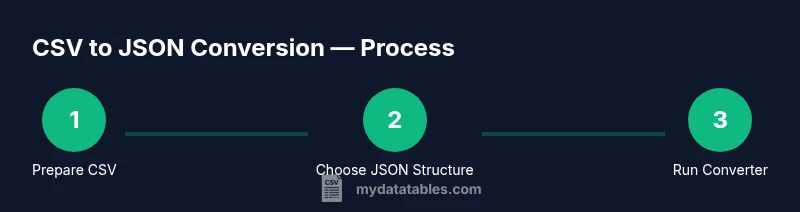
- 1
Prepare the CSV
Open the CSV and verify that the first row contains headers. Check for inconsistent delimiters, quoted fields, or embedded newlines. Normalize encoding to UTF-8 to prevent garbled characters.
Tip: If headers have spaces, normalize to underscores to create clean JSON keys. - 2
Decide on the JSON structure
Choose whether you want an array of objects or JSON Lines. JSON Lines is better for streaming; an array of objects is more readable for APIs and clients expecting a single payload.
Tip: Document the chosen structure in your data contract to avoid downstream confusion. - 3
Write or run a converter
Use a small Python script or a GUI-based tool. Map each CSV header to a JSON key and convert rows into objects. For very large files, implement streaming or chunked processing.
Tip: Test on a representative subset before processing the entire file. - 4
Validate the output
Run a JSON validator and perform spot checks against the source CSV. Ensure numbers stay numbers and nulls appear for missing fields.
Tip: Compare row counts and sample values to detect mapping errors. - 5
Handle edge cases
Treat empty fields as nulls if appropriate for your schema. Normalize date strings to ISO 8601 when possible. Escape special characters as needed.
Tip: Create a small test suite of edge cases to prevent regressions. - 6
Package for consumption
If your workflow feeds APIs, wrap the JSON in a consistent envelope or provide both the array and per-line formats as options.
Tip: Include metadata such as source file name and timestamp for traceability. - 7
Optimize for performance
For large datasets, prefer streaming, parallel processing, or chunked writes. Monitor memory usage and CPU time during conversion.
Tip: Use JSON Lines when you need to pipeline data to downstream processors.
People Also Ask
What is the difference between an array of objects and JSON Lines when converting CSV to JSON?
An array of objects stores all rows under a single JSON array, which is easy to read but can be memory-intensive for large files. JSON Lines writes one JSON object per line, enabling streaming and incremental processing without loading the entire dataset into memory.
An array of objects is good for small to medium datasets; JSON Lines is better for large data you process piece by piece.
Can Excel export CSV data directly into JSON?
Excel itself doesn’t export JSON natively, but you can use Power Query or simple scripts to convert loaded CSV data into JSON. This approach is helpful for non-programmers who rely on GUI-based workflows.
Excel can help via Power Query or external scripts to generate JSON after importing CSV.
How should missing values be represented in JSON?
Missing values can be represented as null or omitted keys depending on your schema. Consistency is key, so pick one approach and document it in your data contract.
Use nulls for missing fields if your schema requires explicit absence.
What about different delimiters like semicolons or tabs?
Specify the delimiter when parsing (e.g., semicolon or tab) so fields aren’t merged. Some CSVs use quoting rules that require careful handling of embedded quotes.
Always set the delimiter explicitly when converting.
How can I validate the JSON output quickly?
Use online JSON validators or write a small script to compare a sample of rows from CSV with the converted JSON. Check data types and counts to ensure fidelity.
Run a quick validator and sample checks to confirm correctness.
Is there a recommended approach for large CSV files?
For large files, prefer streaming or chunked processing, use JSON Lines, and monitor memory usage. Avoid building the entire JSON in memory when possible.
Stream data in chunks to stay within memory limits.
Watch Video
Main Points
- Choose a clear JSON structure first
- Validate output against the source data
- Handle edge cases (missing values, encoding)
- Use streaming for large files
- Test with real-world samples