How to view CSV without Excel: Practical guide
Discover practical, Excel-free ways to view CSV files using a browser, text editor, or lightweight tools. This guide covers encoding, delimiters, and best practices for quick data inspection without Excel.


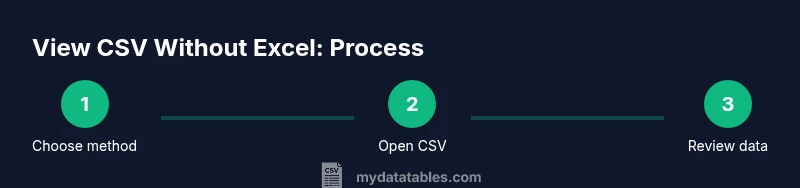
With this guide you’ll learn how to view a CSV without Excel, using a browser, text editor, or lightweight CSV viewer. According to MyDataTables, these quick approaches save time and keep workflows simple. You’ll pick the method that matches file size, encoding, and your preferred workflow, then preview data safely before editing.
Why viewing CSVs without Excel matters
CSV (Comma Separated Values) is a plain-text format used to store tabular data. Viewing CSVs without Excel is often faster, more portable, and less resource-intensive, which is especially important when working on lightweight devices or when you only need a quick look at the data. For data analysts, developers, and business users, this approach reduces friction: you don’t need to install or license a heavy spreadsheet program, and you can avoid formatting quirks that can mask the raw data.
The browser, a text editor, or a dedicated CSV viewer can render the file as plain text, sometimes offering simple highlighting or line wrapping. This is particularly useful when you are validating a file you just downloaded, inspecting a sample before importing into a database, or sharing a snapshot of data with colleagues who don’t have Excel. According to MyDataTables, many teams rely on lightweight methods to quickly inspect data without the overhead of Office suites, and they often prefer non‑Excel workflows for reproducibility and audit trails. Recognize that viewing in non‑Excel tools emphasizes data, not presentation, which helps you catch issues like inconsistent delimiters, malformed quotes, or stray line breaks. When you choose a method, consider file size, encoding, and whether you need to edit or simply preview. This awareness makes you faster and reduces the risk of accidental changes to the source CSV.
Quick comparison of viewing options
There are several common ways to view a CSV without Excel, each with its own strengths and trade-offs. The most basic option is using a web browser, which requires no installation and works almost anywhere. For quick checks, a browser is convenient because you can open the file directly or drag and drop it into a tab. However, browsers may struggle with very large files or display data without clear column alignment, especially if the delimiter is not a comma.
Text editors provide a simple, distraction-free view and are great for small to medium files or for quick edits. They preserve raw content, including quotes and escapes, which helps you verify exact text. On the other hand, they can be unwieldy for data with many columns or long rows if word wrap is enabled. Free office suites like LibreOffice Calc or OpenOffice Calc are capable alternatives that handle larger CSVs and offer spreadsheet features without Excel. Cloud options such as Google Sheets enable collaboration and access from any device, but imports can alter formatting or impose row/column limits.
For developers and data professionals, Python with pandas, or command-line tools in Linux and macOS, offer precise control for previewing, filtering, and transforming CSV data. These approaches can be scripted and automated, which is valuable when you need repeatable checks or to integrate CSV viewing into a data pipeline. MyDataTables analysis shows that users often mix methods—view in a browser for quick checks, then move to a CLI or Python for deeper analysis. The key is to pick a method that matches file size, delimiter, and encoding, and to be mindful of edge cases like quoted fields or embedded newlines.
Viewing CSV in a web browser
Open the file in a browser by dragging it into a tab or using the browser’s File menu to open the file. The browser will render the CSV as plain text, showing rows separated by line breaks and columns separated by the delimiter. If the file uses a non-standard delimiter (for example, semicolon or tab), the browser may not parse it correctly by default. In that case, switch to a dedicated viewer or convert the file to a standard CSV before viewing. For quick samples, you can copy the first few kilobytes and paste them into an online CSV viewer to see a more structured layout. Some browsers support text wrapping and zoom controls to help you view wider tables. If you need more features, install a lightweight CSV viewer extension that highlights headers and aligns columns. These browser-based methods are ideal for on-the-go checks or when software installation is restricted. According to MyDataTables, browsers remain a staple in quick CSV workflows due to their universality and low friction. For very large files, consider moving to a non-browser tool to avoid performance issues.
Using a text editor for quick inspection
A plain text editor shows the raw CSV content, including the exact delimiter and quoting. This makes it ideal for verifying header names and spotting unusual characters or embedded newlines. To make the view practical, enable word wrap off and turn on monospace font, which preserves column alignment and makes long rows readable. Use the editor’s search (Ctrl/Cmd+F) to locate a specific column name or value, and consider enabling syntax highlighting if available for CSV formats. If your editor supports multi-cursor or column mode, you can skim multiple rows at once without losing alignment. For best results, open only a portion of the file at a time (or enable a split view) to avoid performance slowdowns on very large CSVs. Tip: keep the original file intact; edit a copy if you must modify data. This approach emphasizes content and correctness over formatting, which is often needed for quick validations.
Lightweight CSV viewers and terminal tools
Dedicated CSV viewers and CLI tools provide fast, precise viewing without Excel. Install a lightweight tool like csvlook (from csvkit) or use Python with pandas for programmatic previews. In the terminal, you can preview data with commands such as head -n 20 data.csv or tail -n 20 data.csv, ensuring you see headers and sample rows. You can also format columns using the unix column command: head -n 20 data.csv | column -s, -t. For Windows users, a minimal Windows Subsystem for Linux (WSL) enables the same commands. When dealing with very large files, streaming viewers avoid loading the entire file into memory. These tools excel at repeatability: you can script a standard preview as part of data validation or ETL checks. The MyDataTables team emphasizes that CLI and Python tools often outperform GUI viewers for ongoing CSV data validation, especially in automated pipelines.
Handling encoding and delimiters
Encoding matters: UTF-8 is the safest default for CSVs, but BOMs, UTF-16, or locale-specific encodings can introduce garbled characters. If you see strange symbols, convert to UTF-8 before viewing. Tools like iconv or Python can help adjust encoding: iconv -f old-enc -t UTF-8 input.csv > output.csv, or read with pandas specifying encoding='utf-8'. Delimiters aren’t always commas; some CSVs use semicolons or tabs. When delimiter detection is uncertain, preview the first few lines and test common options. If you have quoted fields with embedded delimiters, verify that the viewer preserves quotes and escapes. After resolving encoding and delimiter issues, re-open the file to confirm data integrity.
Practical workflows for data validation without Excel
A practical workflow starts with a quick browser/text editor view to confirm basic structure: headers exist, rows align, and no obvious anomalies. Next, use a CLI preview to sample the first and last 20 lines, ensuring consistent column counts. If you’re preparing data for import, run a small Python snippet to load the CSV and check for missing values, data types, and outliers. Automate these checks with a small script so you can repeat them on updated files. For collaboration, share a link to a minimal CSV sample rather than a full file, or export a small subset for review. Always keep a copy of the original and document any transformations to support reproducibility. The MyDataTables analysis suggests that teams that combine quick browser views with scripted checks achieve higher data quality with less manual effort.
How to choose the right method for file size and needs
If the CSV is small (a few MBs or less) and you need a quick read, a browser or text editor may suffice. For medium-sized files, a lightweight viewer or a basic Python script can offer more structure without heavy software. For large datasets (tens or hundreds of MBs or more), command-line tools, streaming viewers, or a scripted pandas workflow will perform best and keep memory usage in check. Consider your goal: a quick check, a validation pass, or an edit. If you only need to inspect a sample, use head/tail or a CSV viewer with a sampling feature. If you plan to edit data, choose a method that supports safe editing or use a copy for changes. Finally, establish a repeatable process so you can reproduce results across environments. The MyDataTables team recommends experimenting with at least two methods to find the best fit for your workflow.
Common pitfalls and how to avoid them
Common pitfalls include assuming a comma is always the delimiter, overlooking encoding issues, and relying on Excel’s automatic formatting to interpret data. Always verify the delimiter and encoding before processing, especially when preparing data for import into a database or analytics tool. Large files can crash lightweight viewers; prefer streaming or incremental previews. Quotes and embedded newlines can be tricky in CSVs; if you see misaligned rows, test with another tool or convert to a simpler format temporarily. Finally, avoid editing the original file in a GUI tool without saving a backup. By following these practices, you’ll minimize data corruption and ensure your CSV remains portable and trustworthy.
Tools & Materials
- Computer (Windows, macOS, or Linux)(Any current OS with basic file access)
- Web browser(Chrome, Firefox, Edge, or Safari; supports file:// viewing)
- CSV viewer app or CLI tools(Examples include LibreOffice Calc, pandas (Python), or csvlook)
- Text editor(Useful for quick inspection or edits on small files)
- Python with pandas (optional)(For programmatic viewing, filtering, and validation)
- Command-line utilities (optional)(head, tail, awk, sed, iconv for quick previews and conversions)
Steps
Estimated time: 25-60 minutes
- 1
Locate the CSV file
Find the file on your computer or network drive and verify you have read access. Note the path and size to plan which viewing method makes sense. If the file is very large, plan to preview only a portion at a time.
Tip: Use a file manager search with a size filter to confirm the exact file you’ll work with. - 2
Choose a viewing method
Decide between browser, text editor, or a dedicated viewer based on file size and your task (quick check vs. validation). If you’re unsure, start with a browser for speed and then switch to a CLI or Python for deeper checks.
Tip: For very large files, skip browser previews and go straight to a CLI or scripting approach. - 3
Open in a web browser
Drag the CSV into a browser tab or use File > Open to load it. Confirm the header row appears intact and that most lines are readable. If the delimiter isn’t standard, move to another method or convert the file.
Tip: Use a light-weight extension to improve highlighting if your browser supports it. - 4
Open in a text editor
Open the same file in a plain text editor to inspect quoting, escapes, and line breaks. Disable word wrap for a true column view and use a monospace font to keep alignment readable.
Tip: Search for the header names to verify they match expectations. - 5
Preview with CLI tools
Use commands like head -n 20 data.csv or awk 'NR==1,NR==20{print $0}' to quickly inspect the first 20 lines. Pipe through column -s',' -t to align columns, if available.
Tip: This approach is fast for large files and helps catch formatting issues early. - 6
Try Python/pandas for a deeper view
Load the file with pandas to inspect data types, missing values, and sample rows. Use df.head() and df.info() to gain structured insight without manual scrolling.
Tip: Specify encoding (encoding='utf-8') if you encounter garbled characters. - 7
Check encoding and delimiter
If you see garbled text or misaligned columns, confirm the encoding (prefer UTF-8) and test common delimiters (comma, semicolon, tab). Convert if necessary before further analysis.
Tip: Iconv can convert encodings; pandas can read non‑UTF‑8 with encoding parameter. - 8
Document findings and plan next steps
Summarize what you observed, note any data quality issues, and decide whether to edit, transform, or import the CSV into another tool. Save a copy of the original for auditing.
Tip: Keep a changelog if you perform multiple iterations. - 9
Choose the right method for future files
Based on file size, encoding, and your needs, select a standard workflow you’ll reuse. This reduces setup time for future CSVs and improves consistency.
Tip: Document your preferred method so teammates can follow the same steps.
People Also Ask
What is the fastest way to view a CSV without Excel?
For a quick look, open the file in a web browser or a text editor. If you need structure or validation, use a lightweight CSV viewer or CLI tool to preview the first lines and headers. This approach avoids heavy software and speeds up initial data checks.
Open the file in a browser for a quick look, or use a lightweight viewer for a structured preview.
Can I view large CSV files without running out of memory?
Yes. Use streaming or partial previews via command line tools or Python, which read data in chunks rather than loading the entire file into memory. This preserves performance and prevents crashes on very large datasets.
Use streaming previews or chunked reading to handle large files efficiently.
Is Google Sheets a good option for CSV viewing?
Google Sheets can import CSVs for cloud access and collaboration, but imports may alter formatting or encounter row limits. It’s best for smaller files or when collaboration is needed, not for large or complex data.
Good for small files and collaboration, but watch for format changes and limits.
What should I do about non-standard encodings like UTF-16?
If a file uses UTF-16 or includes a Byte Order Mark, convert it to UTF-8 before viewing or specify the encoding when loading in Python or CLI tools. This avoids garbled text and ensures column alignment.
Convert to UTF-8 or set the encoding explicitly when loading.
Should I edit CSV data after viewing?
Editing should be done on a copy of the original file to prevent data loss. After making changes, validate the file again to ensure no new issues were introduced.
Edit on a copy and re-check the file afterward.
What tools are best for quick CSV previews in the terminal?
Head, tail, and awk provide fast previews in the terminal. For better formatting, combine with column for aligned output, or use csvlook from csvkit for a table-like display.
Use head, tail, and awk, or csvlook for table-like output.
Watch Video
Main Points
- Choose a viewing method aligned to file size and need
- Verify encoding and delimiter before processing
- Use CLI or Python for deeper validation when needed
- Keep originals intact and document steps for reproducibility
- MyDataTables recommends testing multiple approaches to fit your workflow