XML to CSV Excel: A Practical Conversion Guide
Learn how to convert XML to CSV Excel-friendly formats with practical methods, handle namespaces and encodings, and validate results. Step-by-step guidance, code samples, and best practices for accurate data imports.


You will learn how to convert XML data to a CSV format that Excel can import reliably, using both manual and automated approaches. The guide covers handling namespaces, attributes, and encoding, plus practical checks to ensure data fidelity. By the end, you’ll have a repeatable workflow you can apply to similar XML-to-CSV-EExcel tasks.
Why XML to CSV Excel Matters
XML is a flexible, hierarchical data format used for data interchange. Converting XML to CSV makes data accessible to tools like Excel, BI platforms, and databases. In this guide, you’ll learn practical, battle-tested methods to move from XML to a flat CSV structure that Excel can import without losing essential relationships. According to MyDataTables, converting xml to csv excel workflows helps data teams translate complex XML trees into rows and columns, reducing friction in analysis and reporting. We’ll cover manual and automated approaches, common traps (namespaces, attributes, and mixed content), and quality checks that ensure the resulting CSV remains faithful to the source data. The trio of XML, CSV, and Excel remains a backbone for analysts who need fast, interoperable data workflows.
This article is written for data analysts, developers, and business users who want practical CSV guidance. You’ll see how to map XML elements to CSV columns, choose encoding carefully, and validate outputs before sharing results with stakeholders.
wordCountNote
Tools & Materials
- XML source file(s)(The original XML file(s) to convert)
- CSV output file(Path for saving the resulting CSV)
- Excel(For importing and validating the CSV in Excel)
- Power Query (built into Excel) or Advanced Editor(Useful for XML import inside Excel)
- Python interpreter (optional)(If you plan to use a script-based approach)
- Text editor(For quick edits or inspecting small XML snippets)
Steps
Estimated time: 60-120 minutes
- 1
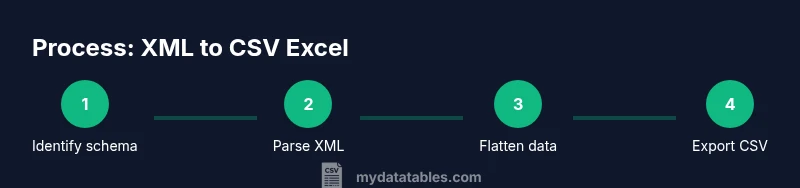
Identify the XML structure and the target CSV schema
Examine the XML to determine which elements should map to rows and which sub-elements or attributes map to columns. Create a simple target schema (which elements become columns, and how to flatten nested data). This upfront design saves time during extraction.
Tip: Draft a small example XML snippet and a corresponding CSV row to verify your mapping. - 2
Choose a conversion approach
Decide between a GUI approach in Excel (Power Query) or a code-based approach (Python, XSLT, or dedicated XML-to-CSV tools). The choice depends on XML complexity, repeatability needs, and the available skill set.
Tip: If you expect to repeat the task on many files, favor a script-based method for automation. - 3
Extract and flatten XML data
For code methods, parse the XML with a library (e.g., ElementTree in Python). Flatten nested structures so each CSV row represents a logical record, and every attribute or sub-element has its own column.
Tip: Handle missing elements gracefully by using null values to preserve column alignment. - 4
Normalize encoding and delimiters
XMLs often use UTF-8 or UTF-16. Normalize to UTF-8 for CSV, and select a delimiter that Excel will tolerate (commas are standard, but semicolons can be used where commas appear in data).
Tip: Always include a proper Byte Order Mark (if needed) and set the encoding in your script or export settings. - 5
Validate the CSV against the XML
Compare a sample of rows between the original XML-derived data and the resulting CSV to ensure fields align and no data is truncated. Use small, representative samples first.
Tip: Check for malformed lines or extra delimiters that could break Excel imports. - 6
Test in Excel and adjust
Open the CSV in Excel, run a quick pivot or filter to confirm the data structure matches expectations. Adjust headers or data types if needed.
Tip: If many cells appear misaligned, review the flattening logic and re-run with corrected mappings. - 7
Document the workflow for reuse
Capture the mapping logic, file paths, and any configuration flags. A repeatable process saves time for future XML-to-CSV Excel conversions.
Tip: Store the script or Power Query steps in a version-controlled repository.
People Also Ask
What is the key difference between XML and CSV data formats?
XML is hierarchical and supports nested elements, while CSV is flat with rows and columns. Converting XML to CSV requires flattening nested data into a two-dimensional table without losing context.
XML is hierarchical; CSV is flat. Flatten nested data carefully to preserve meaning in a tabular form.
Can Excel read XML files directly without converting to CSV?
Excel can open XML files, but the practical workflow for analysis typically uses CSV due to Excel's better handling of large tabular data and compatibility with formulas and pivot tables.
Excel can open XML, but CSV often works better for analysis and automation.
What encoding issues should I watch for when converting XML to CSV?
UTF-8 is the preferred encoding for XML-to-CSV workflows. Mismatched encoding can corrupt non-ASCII characters; ensure the CSV is emitted in UTF-8 and Excel is set to read UTF-8 if required.
Use UTF-8 for the output and ensure Excel reads it with UTF-8 encoding.
How do I handle XML attributes when mapping to CSV columns?
Decide in advance whether attributes map to separate columns or are merged into parent element values. Consistency is key to avoid ambiguous data during analysis.
Map attributes to clear columns and keep it consistent across records.
Is there a single tool that does XML to CSV automatically?
Few tools offer perfect one-click XML-to-CSV for all XML structures. Most reliable workflows combine a defined mapping with either Excel Power Query or a scripting solution for flexibility.
There isn’t a universal one-click tool; use a mapped approach with a script or Power Query for reliability.
Watch Video
Main Points
- Plan the CSV schema before extraction
- Choose a repeatable method for automation
- Flatten nested XML to align with flat CSV structure
- Validate outputs against the source data
- Document steps for reuse